
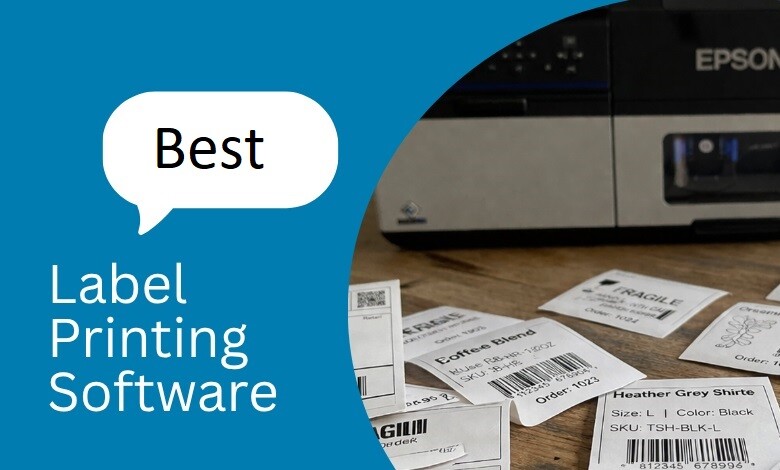
If you’ve ever run a label job, you probably already know the pain: misaligned sheets, wasted stock, and a batch you have to run all over again. The cause is usually a mismatch between two types of software that are easy to confuse.
The best label printing software comes down to whether you need design or production. For design, you’ll want Canva, Avery Design & Print, or Adobe Illustrator. For barcodes, variable data, and high-volume runs, you’ll want BarTender, PTCreate, CQL Pro, or ZebraDesigner. Most businesses pair one design tool with one production tool.
Pick the wrong side of that split, and you’re left with a beautiful label that won’t print in a batch, or a batch engine with no real design controls. Get the pairing right, and you’ll stop waiting on an outside vendor to fix it for you.
In this guide, we’ll walk you through what label printing software actually does, the features that matter most, and how to match the right software to your printer so your labels come out right the first time. You’ll also find 12 tools compared side by side, with pricing models, pros, and cons for each. With that in mind, let’s get into the specifics.
- Quick Label QL-300 (120V) Toner CMYK Color Label Printer SKU: 1003-0000002$9,970.00
FREE SHIPPING over $199*
Orders before 12PM EST usually Ship Same Business Day - Epson ColorWorks C3500 Inkjet Color Label Printer SKU: C31CD54011 GTIN: 814420980046$2,492.00
FREE SHIPPING over $199*
Orders before 12PM EST usually Ship Same Business Day - Afinia L301 Small Business Color Label Printer SKU: 26849 GTIN: 678621130057$1,249.00
FREE SHIPPING over $199*
Orders before 12PM EST usually Ship Same Business Day
Key Takeaways
- Design software creates artwork. Production software prints at scale. Most businesses need both.
- Canva, Avery Design & Print, DYMO Connect for Desktop, and Brother P-touch Editor are free.
- BarTender, Loftware NiceLabel, and CQL Pro are the picks for barcodes, variable data, and ERP-driven printing.
- Choose the software and the printer together. Production software is written for specific hardware. A few production tools, including CQL Pro, are the exception and will drive most printers with a Windows driver.
What Is Label Printing Software?
Label printing software is a program you use to design, format, manage, and print labels. You can build product labels, price tags, barcodes, QR codes, RFID tags, inventory labels, and shipping labels, then send them straight to your printer.
Most tools share a core set of features: a built-in label designer, barcode and QR code generation, batch or bulk printing, variable data support, and export to print-ready files such as PDF. Some accounting, shipping, and graphic design apps include basic label printing as an add-on. Dedicated label software gives you far more control over the final result.
If you produce labels regularly, the right program simplifies the whole process. You waste fewer hours wrestling with layouts and get more labels printed exactly the way you pictured them.
Design Software vs. Production Software: What Is the Difference?
Design software creates the artwork. Production software prints it at scale. This is the distinction that catches most shoppers off guard, and confusing one type for the other is how you end up buying the wrong program.
Design software covers logos, colors, typography, and the overall look of your label. Canva, Adobe Illustrator, and Avery Design & Print sit in this group.
Production software covers barcodes, variable data, print queues, and the connection to your printer hardware. BarTender, PTCreate, CQL Pro, NiceLabel, and ZebraDesigner sit in this group.
Printing small runs of simple labels? A design app may be all you need. Printing high-volume, barcoded, or data-driven labels? You will want production software sitting behind your printer. Plenty of businesses run both together, one to design and one to produce.
What to Look For in the Best Label Software
Before you commit, run through this checklist. The best label software for you is whatever matches your workflow, your printer, and your budget, not whichever product crams in the most features.
- Ease of use. Drag-and-drop editors and template libraries let you design without a graphic design background.
- Barcode and QR code support. If you sell, ship, or track inventory, this is essential. Standards groups like GS1 set the barcode formats that retailers expect.
- Variable data and batch printing. Print hundreds of unique labels, such as serial numbers or lot codes, in a single job.
- File and export options. High-resolution, vector-friendly exports (PDF, EPS, SVG, AI) keep artwork crisp at any size.
- Printer compatibility. The software has to support your exact printer model and label sizes. Some production tools are locked to one manufacturer, and others print to anything with a Windows driver, so check before you buy.
- Integration. Can it pull data from Excel, a CSV file, or a business system like Oracle or SAP?
- Operating system. Confirm Mac support before you buy. Several production tools are Windows only.
- Licensing model. Check whether you are buying a perpetual license or a subscription, and whether printer licenses are counted separately.
- Support and training. A knowledge base, tutorials, and responsive help save you when a job is due and something goes wrong.
Which Label Software Is Right for My Business Type?
The fastest way to shorten your list is to start with how you already get your work done.
If you run an e-commerce brand, you want design software that helps you create eye-catching custom labels and reprint them on demand. Consistency and speed matter more than deep design features, since you print the same labels again and again.
If you run a supply chain or logistics operation, you need barcodes, inventory labels, and shipping labels that scan every time. Accuracy and printer reliability come first, so tools built for barcode workflows are a natural fit.
If you run a manufacturer or product business, you often print in bulk with variable data such as lot numbers, dates, and serial codes. Look for software that automates repetitive jobs, connects to your data, and reduces the chance of costly errors.
If you print regulated labels, the rules drive the software. GHS chemical labels, FDA nutrition panels, and cannabis compliance labels all need locked templates, revision control, and reliable variable data. Production platforms handle this. Design apps do not.
And if you only run the occasional office or shipping label, a free app or something already installed on your computer will probably cover it. There is no reason to pay for features you will never touch.
Free vs. Paid Label Software
Free tools are a smart place to start. Avery Design & Print, Canva’s free plan, and Microsoft Word all let you design and print without spending a dollar. DYMO Connect for Desktop and Brother P-touch Editor are free for their own hardware. Open-source options like Inkscape and GIMP add more power at no cost, though they ask for more skill.
Paid software earns its price once your needs grow. Automation, barcode compliance, variable data, and printer integration save real hours once you print in volume. A solid approach is to begin on a free plan and pay up only once the manual busywork starts swallowing your day. Most paid production platforms, including BarTender, NiceLabel, and CQL Pro, offer a 30-day trial, so you can test a full workflow on your own printer before you commit.
Label Printing Software Comparison Chart
Here is a quick glance at popular options and where each one fits best.
| Software | Best for | Skill level | Type | Key strength | Cost |
|---|---|---|---|---|---|
| Canva | Beginner label design | Beginner | Design | Huge template library, drag-and-drop editor | Free plan, paid Pro tier |
| Adobe Illustrator | Professional artwork | Advanced | Design | Full vector control | Subscription |
| Avery Design & Print | Quick template labels | Beginner | Design | Mail merge and barcode generator built in | Free |
| Microsoft Word | Simple address labels | Beginner | Design | Built-in label templates | Included with Microsoft 365 |
| BarTender | Barcode and business labels | Intermediate | Production | Data integration and automation | Paid, tiered editions |
| NiceLabel | Regulated and enterprise labeling | Intermediate | Production | Template control and approval workflows | Paid, tiered editions |
| PTCreate | Primera color labels | Beginner | Production | Bundled design and print for Primera | Standard free, Pro paid |
| CQL Pro by AstroNova | QuickLabel machines | Intermediate | Production | Label designer plus print manager | Paid |
| ZebraDesigner | Barcode and warehouse labels | Intermediate | Production | Built for Zebra workflows | Essentials free, Pro paid |
| Wasatch SoftRIP | Color-critical production | Advanced | Production (RIP) | Precise color control and profiling | Paid license |
| DYMO Connect | Office and shipping labels | Beginner | Label maker | Fast desktop label printing | Free |
| Brother P-touch Editor | Office and asset labels | Beginner | Label maker | Free editor tuned to Brother hardware | Free |
Note* Pricing models are listed rather than fixed dollar figures because vendor pricing changes and several products are licensed per printer. We can quote BarTender licensing and the Primera LX610 with the PTCreate Pro bundle directly. The other paid tools on this list are sold through their own manufacturers or their authorized software resellers, so pricing for those comes from the vendor.
12 Best Label Printing Software Tools
Below are the tools worth considering, grouped by the job each one handles.
Design-First Tools
1. Canva
Canva is the friendliest starting point for label design. Its drag-and-drop editor and large template library make product, cosmetic, and packaging labels easy, even if you have never designed anything before. When your design is ready, export a high-resolution PDF and print at home or through a print service.
Best for: Small brands designing their first product labels. Cost: Free plan available, paid Pro tier for premium templates and assets
Pros
- Beginner-friendly editor with almost no learning curve
- Very large template and asset library
- Runs in a browser and on mobile
Cons
- Limited barcode functionality (QR codes are available through an app, but linear barcode support is thin)
- Not built for batch or variable data printing
2. Adobe Illustrator and Photoshop
For serious design work, Illustrator and Photoshop are what most professionals reach for. Illustrator builds crisp vector artwork that scales cleanly, while Photoshop edits product photos and image-heavy designs. It takes time to learn and carries a monthly fee, but nothing else hands you this level of creative control. If you want free, open-source equivalents, Inkscape and GIMP cover similar ground.
Best for: Agencies and brands that need full control over packaging artwork. Cost: Creative Cloud subscription
Pros
- Industry-standard vector and photo editing
- Precise typography, color, and layout control
- Exports every print-ready format a printer will ask for
Cons
- Steep learning curve for beginners
- No barcode generator or variable data engine
3. Avery Design & Print
Avery Design & Print is a free, web-based tool with pre-designed templates, mail merge, and a barcode generator. It is beginner-friendly and runs in any browser or on your phone, which makes it a strong free option for businesses that print onto Avery label stock.
Best for: Quick template-based labels on Avery sheet stock. Cost: Free
Pros
- Free, with mail merge and barcode generation included
- Large library of pre-sized templates
- Web and mobile Access with no install
Cons
- Built around Avery label products
- Limited font and creative flexibility
4. Microsoft Word
Microsoft Word is not a design suite, but it prints simple text labels well using built-in templates and mail merge. If you mostly need address or file folder labels, it may be all you need.
Best for: Address, file folder, and other simple text labels. Cost: Included with Microsoft 365
Pros
- Already installed on most office computers
- Built-in templates from major label vendors
- Mail merge handles simple variable data
Cons
- Very limited graphic design capability
- No barcode generation without an add-in
Production and Printer Software
5. BarTender by Seagull Scientific
BarTender is a comprehensive barcode and label platform, and the most widely used production tool on this list. You can connect it to Excel, CSV files, or a business system, then automate printing with no custom code. It works with many printers, including Epson color models, which makes it a strong pick for barcode-driven and high-volume jobs.
Best for: Barcode labels, variable data, and automated print jobs. Cost: Paid, tiered editions (Starter, Professional, Automation, Enterprise) with a 30-day free trial. A subscription-based cloud version is also available.
Pros
- Connects to Excel, CSV, Oracle, and SAP without custom code
- Broad printer support across brands
- Scales from a single desktop to plant-wide automation
Cons
- Cost rises with printer count and edition
- More setup than a simple design app
- The desktop application is Windows-based, so Mac users need a Windows machine or a virtual environment
6. NiceLabel by Loftware
NiceLabel is a label management platform built for regulated and multi-site operations. It pairs a designer with template control, approval workflows, and a document history, which is what auditors ask for in food, pharmaceutical, and chemical labeling. Choose it when consistency across sites matters more than creative freedom. Loftware acquired NiceLabel, and the product is now marketed as Loftware NiceLabel, so you will see both names in circulation.
Best for: Regulated industries and multi-site labeling standardization. Cost: Paid, tiered editions with a free trial
Pros
- Strong template control, versioning, and approval workflows
- Good fit for GHS, food, and pharmaceutical compliance
- Integrates with ERP and warehouse systems
Cons
- More platform than a small shop usually needs
- Higher total cost of ownership than a single-seat designer
7. PTCreate by Primera
PTCreate is Primera’s design and print software. It pairs tightly with Primera color label printer models, so your artwork, cut lines, and print jobs stay in one place. PTCreate Standard is included with supported Primera printers such as the LX610. PTCreate Pro is the paid upgrade, and it adds vector file import (.ai, .psd, .pdf), layering, and auto-trace contour cutting around intricate artwork. We sell the Primera LX610 and PTCreate Pro software bundle if you want the hardware and the upgraded software together.
Best for: Businesses printing and cutting on a Primera color label printer. Cost: PTCreate Standard ships with supported Primera printers; PTCreate Pro is paid
Pros
- Design and cut-line setup in a single program
- Tuned specifically to Primera hardware
- Short learning curve for a production tool
- Runs on both Windows and macOS
Cons
- Works only with Primera printers
- Fewer automation options than BarTender or NiceLabel
8. CQL Pro by AstroNova
CQL Pro is a high-end labeling program built by AstroNova, the maker of QuickLabel printers. It combines a Label Designer for text, barcodes, and variable data with a Print Manager that handles queues and job monitoring, giving you full command of the print workflow from one screen. It has native support for QuickLabel printer models, which unlocks extra printer functionality, but AstroNova states it is compatible with most label printers on the market that have a Windows driver, regardless of brand. That makes it one of the more flexible production tools on this list.
Best for: Managed print queues, on QuickLabel hardware or on most other printers with a Windows driver. Cost: Paid, with a full-featured 30-day free trial. A CQL Pro license has also been included with certain QuickLabel printers, so check what came with your machine before you buy.
Pros
- Label design and print queue management in one package
- Solid barcode and variable data handling
- Job monitoring for long production runs
- Not locked to a single printer brand
Cons
- Windows only
- The deepest feature set is reserved for QuickLabel hardware
- Overkill for occasional label printing
9. ZebraDesigner
ZebraDesigner formats barcode and inventory labels for Zebra printers, a common choice in warehouses and logistics operations. The free Essentials edition covers basic label layouts, while the Professional edition adds database connectivity and advanced barcode options. The practical dividing line is data: Essentials cannot connect to an external database at all, so every field is either fixed or typed in at print time. Professional adds database connections through Excel, Access, text files, and ODBC, plus RFID encoding and simple VB scripting. There is also a free ZebraDesigner for Developers edition for building ZPL templates.
Best for: Warehouse, inventory, and shipping labels on Zebra hardware. Cost: Essentials edition free, Professional edition paid (one-time activation license key)
Pros
- Free entry-level version
- Strong barcode support for operational labeling
- Sends jobs straight to Zebra printers
Cons
- Built for Zebra printers only
- Minimal creative design capability
- No database connectivity unless you buy Professional
10. Wasatch SoftRIP
Wasatch SoftRIP is RIP software built for color control rather than layout. It manages color profiles, ink limits, and output accuracy, which matters when a brand color has to match across every run. It supports high-speed, on-demand label production and works with multiple label printers. Wasatch has produced printer-specific editions for color label hardware, including an edition for the Afinia L801 and one bundled with the Epson TM-C7500 and TM-C7500G, and a variable data printing add-on is sold separately.
Best for: Color-critical production where brand color accuracy is non-negotiable. Cost: Paid license (sold through Wasatch and its authorized resellers)
Pros
- Precise color management and profiling
- Handles high-speed, on-demand production
- Compatible with a range of digital label printers
Cons
- Not a design tool, so you still need artwork software
- Requires color management knowledge to get the most from it
Label Maker Software
11. DYMO Connect for Desktop
DYMO Connect for Desktop drives DYMO LabelWriter printers for address, shipping, and organization labels. It is free, simple, and configured for DYMO label sizes out of the box, which removes most of the alignment guesswork. It supports the LabelWriter 550 series, the 450 series, the 4XL, and LabelManager models, and it runs on both Windows and Mac.
Best for: Everyday office and shipping labels on a DYMO LabelWriter. Cost: Free
Pros
- Free and quick to set up
- Label sizes preconfigured for DYMO stock
- Available on desktop and mobile
- Bulk printing from Excel, Outlook, and Google Contacts
Cons
- Works with DYMO printers only
- Very limited design customization
12. Brother P-touch Editor
Brother P-touch Editor does the same job for Brother label printers and label makers. Like DYMO Connect, it is free and tuned to its own hardware, so templates, tape widths, and margins are already correct.
Best for: Office, cable, and asset labels on Brother hardware. Cost: Free
Pros
- Free download with templates included
- Handles barcodes and simple serialization
- Tuned to Brother tape and label sizes
Cons
- Works with Brother printers only
- Interface feels dated next to web-based designers
For quick office labeling, the best label maker software is usually the one built by your printer’s own manufacturer, since it is tuned to that exact device.
Tips for Better Label Printing
Great software still needs good habits. Follow these to get clean, consistent results:
- Match your design to the exact label size before you print.
- Run a test print before you commit to a large batch.
- Use high-contrast colors so barcodes scan reliably.
- Set bleed and safe margins, so color runs cleanly to the edge of the label.
- Choose materials rated for your printer and ink type.
- Confirm your artwork resolution is high enough for a sharp print.
It is also worth picturing how that label will look once it is applied to the product. Container shape, label size, and brand colors all change how a design reads in real life. For a deeper look at layout and finishing, see our guide to printed labels design tips and best practices.
How Does Label Printing Software Work With Your Printer?
Label printing software sends your finished label to the printer as a print job, using a driver that translates the design into instructions your specific hardware understands. That is why software and hardware have to be chosen together. The best design in the world still needs a printer that can reproduce it, and the best printer needs software that speaks its language.
Production tools such as BarTender, PTCreate, CQL Pro, and NiceLabel are built to drive color label printers, pull data from systems like Oracle or SAP, and keep long runs consistent from the first label to the last. Some of them are tied to one manufacturer, such as PTCreate with Primera and ZebraDesigner with Zebra, while others print to anything with a Windows driver. If you are moving printing in-house, choose the software and the printer together, not one at a time.
At TCS Digital Solutions, this is the conversation we have with customers every day. We are an authorized reseller for Afinia, Epson, Primera, QuickLabel by AstroNova, TrojanLabel, and NeuraLabel, and we also carry AstroJet and VIPColor color label printers. Alongside the printers, we stock die cutters, digital label finishers, label applicators and dispensers, and rewinders, and our engineers design and build our own finishing equipment right here in the USA.
On the software side, you can start a 30-day BarTender free trial through our BarTender label software page, and our team can put together a quote based on your printer count. If you want design and production together in one purchase, we sell the Primera LX610 with the PTCreate Pro software bundle. And if you need to print from Oracle, SAP, or a cloud-based system in full color, that is exactly the kind of project our engineering services team handles.
Which Label Printing Solution Is Right for You?
Finding the right label printing software does not have to be guesswork. Start with how you design, layer in how you print, and match both to a printer that fits your volume and materials. If you mostly need simple labels, a design app may be enough. If you print barcodes, variable data, or large runs, pair a design tool with production software and a reliable color label printer. Get that pairing right, and you control quality, speed, and cost from your own desk.
If you would rather choose hardware first, our best label printer buying guide is a good next step. If you are weighing software and hardware together, our team can walk you through the pairing.
Want more information about label printing software? Contact our expert support team at orders@tcsdigitalsolutions.com or call (678) 824-2304 or +1 (762) 208-6985. Visit our blog for more insights.
Frequently Asked Questions
What is the Best Label Printing Software?
Canva and Avery Design & Print are the best free options for simple label design. BarTender is the best choice for barcodes and high-volume printing, PTCreate is the best match for Primera printers, and CQL Pro is best for managed print queues, especially on QuickLabel machines. Most businesses use one design tool alongside one production tool.
Is There Free Label Printing Software?
Yes. Avery Design & Print, Canva’s free plan, and Microsoft Word’s built-in label templates are all free. DYMO Connect for Desktop, Brother P-touch Editor, and ZebraDesigner Essentials are free for their own hardware, and Inkscape and GIMP are free open-source alternatives to Illustrator and Photoshop. Free tools cover basic design, but barcodes, variable data, and high-volume runs usually require paid production software.
What is the Difference Between Label Design and Label Printing Software?
Label design software creates the artwork. Label printing software produces the labels. Design tools such as Canva and Illustrator handle colors, logos, and typography. Printing tools such as BarTender and ZebraDesigner handle barcode generation, variable data, print queues, and direct printer control. Many businesses run one of each.
How Much Does Label Printing Software Cost?
Label printing software ranges from free to several thousand dollars. Design apps like Canva and Avery Design & Print cost nothing to start. Production platforms such as BarTender and NiceLabel are sold in tiered editions, and the price usually scales with the number of printers and the level of automation you need. Ask for a quote based on your printer count rather than a single-seat price.
Can Label Printing Software Print Barcodes and QR Codes?
Yes. Most dedicated label software generates barcodes and QR codes and places them directly on your label. BarTender, NiceLabel, ZebraDesigner, CQL Pro, and Avery Design & Print all include barcode generators. Color label printers can then print barcodes, text, and graphics together in one pass.
Can Label Software Connect to My Business Systems?
Yes. Production platforms such as BarTender and NiceLabel pull data directly from Excel, CSV files, and business systems like Oracle and SAP, then print labels automatically. This keeps your labels accurate and saves hours of manual entry once you print in volume. If you print from an ERP or cloud system, confirm the software supports that connection out of the box before you buy.
Is There Label Printing Software for Mac?
Yes, but the options are narrower. Canva, Adobe Illustrator, Avery Design & Print, Microsoft Word, PTCreate, and DYMO Connect for Desktop all run on macOS. Most heavy-duty production platforms, including BarTender, CQL Pro, and ZebraDesigner, are Windows programs, so Mac users typically run them through a virtual machine or a dedicated Windows print station. Confirm operating system support before you purchase.
Do I Need Special Software to Print Barcode Labels?
You need software that can generate a barcode in a scannable format, which rules out most basic design apps. Free options such as Avery Design & Print and ZebraDesigner Essentials include barcode generators. For serialized barcodes, lot codes, or GS1 compliance, use a production platform like BarTender or NiceLabel that pulls the values from your data source.
Which Label Maker Software Should I Use for a Desktop Label Printer?
Use the software built by your printer’s manufacturer. DYMO Connect for Desktop drives DYMO LabelWriter printers, and Brother P-touch Editor drives Brother machines. These tools are free, simple, and tuned to that exact hardware, so label sizes and margins are already configured.
Related Articles
- Best Label Printers
- Printed Labels: Design Tips and Best Practices
- How to Create Professional Looking Labels with a Commercial Label Printer

