

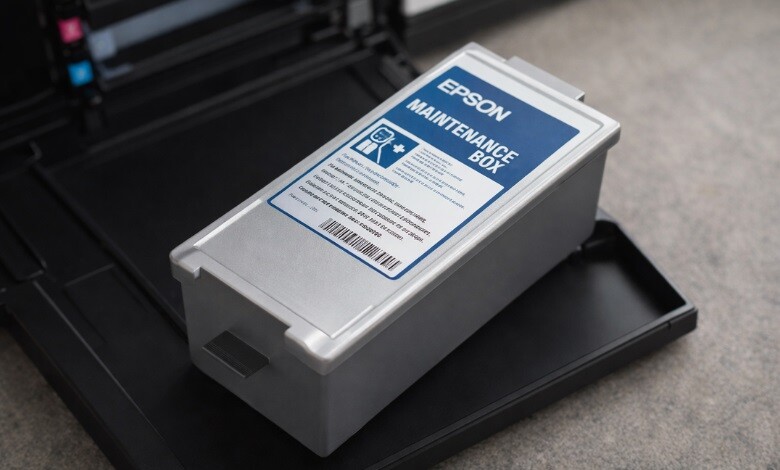
| Quick Answer A maintenance box on an Epson printer is a small, user-replaceable container that collects waste ink produced during head cleaning, initial ink charging, and borderless printing. It protects the internal components from ink overflow, keeps print quality consistent, and typically lasts 15,000 to 30,000 pages before needing replacement. |
If you’ve ever seen a “Replace Maintenance Box” alert pop up on your Epson printer and wondered what a maintenance box is on an Epson printer and why you suddenly can’t print, you’re in the right place. This small but critical component is the silent workhorse inside your printer, and understanding it can save you hours of downtime, expensive repair bills, and a lot of frustration.
In this comprehensive guide, we’ll walk you through exactly what a maintenance box does, the warning signs your printer will show you, how long it should last, how to replace it yourself in minutes, which part number matches your specific Epson model, and how to dispose of the used one responsibly. Whether you’re running a high-volume Epson ColorWorks label printer or a home EcoTank, this article covers everything you need to keep your machine printing without interruption.
-
 Epson C4000 Maintenance Box SJMB4000 SKU: C33S021601$39.00
FREE SHIPPING over $199*
Orders before 12PM EST usually Ship Same Business Day -
 Epson ColorWorks C6000 / Epson C6500 Maintenance Box SJMB6000/6500 for CW6000 / CW6500 SKU: C33S021501$39.00
FREE SHIPPING over $199*
Orders before 12PM EST usually Ship Same Business Day - Epson ColorWorks C3500 Maintenance Box SJMB3500 for Epson C3500 SKU: C33S020580 GTIN: 4988617161726$41.00
FREE SHIPPING over $199*
Orders before 12PM EST usually Ship Same Business Day
What is an Epson Maintenance Box?
An Epson maintenance box is a small, user-replaceable container installed inside your Epson printer that collects excess and waste ink during routine printing, print head cleaning cycles, and initial ink charging. Think of it as a dedicated reservoir that absorbs and contains every drop of ink your printer flushes out during its self-cleaning processes, so that waste ink never leaks onto your machine’s delicate internal electronics.
Inside the plastic shell of every Epson printer maintenance box, you’ll find a stack of highly absorbent pads engineered to soak up and lock away liquid ink safely. A small electronic chip on the side of the unit communicates with your printer, tracking exactly how much waste ink has been collected. Once the chip signals that the pads are close to full, your printer will alert you that it’s time for a replacement.
The maintenance box is sometimes called an Epson ink maintenance box, a waste ink tank, or simply a printer maintenance box. No matter the name, the function remains unchanged: it collects waste ink and shields your printer from potential damage.
This component is especially critical for Epson ColorWorks label printers (C3500, C4000, C6000, C6500, C7500, and C8000 models) and consumer EcoTank and WorkForce Pro printers, all of which rely on frequent print head cleaning to maintain image quality.
Why the Maintenance Box is Critical to Your Printer’s Health?
Collecting waste ink might sound trivial, but the maintenance box actually performs several preventative jobs that extend the life of your machine. Without it, the tiny amounts of ink flushed out during every cleaning cycle would quickly build up inside the printer, leading to mechanical failures, messy leaks, and ruined print jobs.
Here’s a breakdown of what the maintenance box in an Epson printer does:
- Prevents ink overflow and protects the machine. Each head cleaning forces ink through the nozzles, which could cause damage if not properly managed. That ink has to go somewhere, and without a maintenance box, it would pool inside the printer and corrode sensitive electronics.
- Keeps prints clean and streak-free. Regular head cleaning cycles, made possible by the maintenance box, keep the nozzles clear and your labels or documents sharp and vibrant.
- Avoids costly service calls. Because the maintenance box is a do-it-yourself replaceable part, you can fix a “full” error in a couple of minutes instead of shipping the printer out for professional service.
- Protects your warranty and your investment. By managing waste ink safely, the maintenance box helps ensure your printer lasts for the full number of print cycles it was engineered to handle.
- Eliminates messy desk leaks. The super-absorbent pads lock liquid ink away, so you never have to worry about ink seeping onto your shelf, desk, or floor.
When an Epson printer reports that the maintenance box is at the end of service life, printing stops completely. This is a deliberate safety design choice. Epson programs this hard stop into every model because allowing the printer to keep running with a full waste tank could permanently damage the machine through ink overflow. What might look like an inconvenience is actually your printer protecting itself.
| Need a replacement right away? We stock genuine Epson maintenance boxes for every ColorWorks model. In stock, ships same day. SHOP MAINTENANCE BOXES or call (678) 824-2304 |
Signs That Your Epson Maintenance Box Needs Replacement.
Your Epson printer is programmed to give you plenty of notice before the maintenance box becomes a problem. Catching these signs early helps prevent unexpected shutdowns during important tasks. Here are the warning patterns to watch for.
On-Screen LCD Alerts
The clearest signal comes from the printer’s LCD display or the Epson printer driver on your computer. The warning messages follow a predictable sequence:
- Your maintenance box is approaching the end of its usable life. This is your early warning. Printing continues as normal, but you should order a replacement right away so it arrives before the shutdown.
- The maintenance box has now reached the end of its service life. Printing will stop very soon. Install a new box within the next few print jobs.
- Replace the maintenance box. This is the final message. Printing is paused until a new box is installed.
Most Epson printers first display the early warning when the waste ink level reaches roughly 80 percent of capacity, giving you a comfortable lead time to source a new part.
Flashing LED Patterns on Printers Without LCDs
On simpler Epson models without an LCD screen, a specific pattern of flashing lights on the control panel indicates a maintenance box problem. The pattern varies by model, so check your printer’s user manual for the exact sequence.
Slower or Interrupted Cleaning Cycles
In some cases, you may notice the printer taking longer to complete head cleaning cycles or print quality gradually declining, even before the formal warning appears. This might suggest that the absorbent pads are losing their ability to hold ink.
Checking Maintenance Box Status Manually
You can also check the remaining life of your Epson maintenance box directly. On most modern models, press the Home button on the control panel, navigate to Maintenance > Maintenance Box Service Life, and press OK. The screen will show the remaining capacity as a percentage or a bar graph.
Note* Pay attention to the early warning of ‘approaching the end of its service life’—it’s crucial to replace it soon. Treat it as the moment to order a replacement so you’re never caught with a shutdown printer and no spare part on the shelf.
How Long Does an Epson Maintenance Box Last?
A frequently asked question from users is how long an Epson maintenance box will last. The duration of the maintenance box’s life depends largely on your printer’s usage and the tasks it performs. Lifespan isn’t measured in weeks or months but in the volume of waste ink generated over time.
On average, a single Epson printer maintenance box will serve somewhere between 15,000 and 30,000 pages for typical office use. For light home users, a single box may last more than a year. For high-volume label printing businesses running Epson ColorWorks machines all day, replacement may be needed every few months.
Factors That Shorten Maintenance Box Life
Several usage patterns accelerate how quickly your maintenance box fills up:
- Frequent head cleaning cycles consume the most ink waste. If your printer sits idle for long periods, it runs automatic cleaning cycles to prevent nozzle clogs, each of which dumps a small amount of ink into the box.
- Borderless photo printing. Borderless printing intentionally extends ink past the edge of the page, and all of that overspray is captured in the maintenance box.
- High-volume color printing. The more ink you use, the more self-maintenance the printer performs in the background.
- Initial ink charging on a new printer. The very first setup of any Epson ColorWorks or EcoTank printer consumes a significant amount of ink to prime the system, which partially fills the starter maintenance box immediately. This is normal and only happens once.
- Environmental factors. Dusty environments, high humidity, or frequent temperature swings can trigger extra cleaning cycles.
Extending the Life of Your Maintenance Box
You can’t stop the maintenance box from filling up, but you can slow it down:
- Keep your printer powered on and connected so scheduled cleanings run efficiently rather than triggering emergency deep cleanings.
- Avoid running manual head cleanings unless you actually see print quality issues.
- Use genuine Epson ink cartridges, which are formulated to minimize residue and cleaning demand.
- Store your printer in a clean, dry, temperature-stable environment.
How to Replace an Epson Maintenance Box: Step-by-Step
Replacing the Epson maintenance box is one of the simplest printer tasks you can perform. Epson designed the process to be simple enough that any user can handle it without tools or technical expertise. Here’s how to do it safely.
What You’ll Need Before You Start
- A new, sealed Epson maintenance box that matches your printer’s part number
- The resealable plastic bag that ships with the new box (for disposing of the old one)
- A flat-head or Phillips-head screwdriver may be required if your model has a cover that needs to be unscrewed.
- A clean paper towel or cloth in case of minor ink drips
The Replacement Process
- Start by turning off the printer and unplugging it to ensure safety while working. This prevents any electrical issues and stops the machine from attempting to print while the box is out.
- Locate the maintenance box compartment. On most Epson ColorWorks printers, it’s on the rear or right side. On EcoTank and WorkForce models, it is usually behind a small rear panel. Consult your printer’s manual if you can’t spot it.
- Open the compartment cover. Depending on the model, you’ll either unclip the cover or remove a single screw. Make sure to keep the cover and screws in a secure location for later reassembly.
- Remove the old maintenance box. Gently pull out the old maintenance box while ensuring it stays level at all times. Ink inside the absorbent pads is saturated, so avoid tilting or shaking the unit.
- Place the old maintenance box in the provided plastic bag that came with the new unit. Seal the bag tightly to prevent leaks.
- Unpack the new maintenance box. Remove the new box from its packaging, taking care not to touch the green chip. Avoid touching the green chip on the box, as oils from your skin can affect its ability to communicate with the printer.
- Gently insert the new maintenance box into its designated slot. Line it up with the slot and push it straight in until you hear or feel a click, which confirms the chip is seated properly against the printer’s sensor.
- Close the compartment cover and reinstall any screws.
- Plug the printer back in and power it on. Upon installation, the printer will automatically recognize the new box and reset the waste ink counter.
Do You Need to Reset the Counter Manually?
This is a question we get all the time, and the answer is no. There are no hidden button combinations or software resets needed. The chip on every new Epson maintenance box is a single-use component that signals to the printer that it’s fresh and empty. As soon as it’s installed and powered on, the printer automatically resets the waste ink counter and clears the error message.
Finding the Right Maintenance Box for Your Epson Printer Model
It’s crucial to choose the correct maintenance box for your Epson printer model. Every Epson series requires a specific part number because the physical size, absorbent capacity, and chip programming must match the printer exactly. Installing the wrong box will result in the printer refusing to recognize it and continuing to display the error.
Three Easy Methods to Locate Your Part Number.
- Check the old box. The easiest method is to look at the label on the unit you’re removing. The part number is printed clearly, typically starting with “T” or “C13T.”
- Consult your printer’s manual. The consumables or maintenance section of the manual lists every compatible part.
- Use an online compatibility tool. TCS Digital Solutions offers a product-category page that matches your Epson printer to the correct maintenance box with zero guesswork.
Epson Maintenance Box Compatibility Chart.
Below is a reference guide matching popular Epson printers to their respective maintenance box part numbers. Always verify with your specific model before purchasing.
| Epson Printer Series | Example Models | Required Maintenance Box |
| ColorWorks C3500 | TM-C3500 | SJMB3500 |
| ColorWorks C4000 | CW-C4000 Gloss / Matte | C13T04D100 / T04D1 |
| ColorWorks C6000 / C6500 | CW-C6000A, CW-C6500A, CW-C6000P, CW-C6500P | C13T671500 / C13T671600 |
| ColorWorks C7500 | CW-C7500G, CW-C7500 Matte | SJMB7500 |
| ColorWorks C8000 | CW-C8000 Gloss / Matte | C13T52R200 |
| EcoTank Pro | ET-5800, ET-5850, ET-16600 | C13T04D100 |
| WorkForce Pro | WF-4740, WF-4830, WF-7840 | C13T671600 / C13T671500 |
| Expression Photo HD | XP-15000 | T366100 |
Note: This table is a general guide. Always double-check the part number on your existing unit or in your printer manual before placing an order.
Why the Part Number Matters
The small green chip on every maintenance box is programmed specifically for a family of printers. If you install the wrong model, the printer will fail to detect it as a valid replacement, and the “Replace Maintenance Box” error will remain on screen. Beyond compatibility, the wrong part may also have the wrong absorbent capacity, which risks premature overflow. Taking two minutes to confirm the correct part saves hours of troubleshooting later.
Popular Epson Maintenance Boxes In Stock
|
Epson C4000 Maintenance Box Part #: C13T04D100 In Stock | Ships Today |
Epson C6000/C6500 Maintenance Box Part #: C13T671500 In Stock | Ships Today |
Epson C8000 Maintenance Box Part #: C13T52R200 In Stock | Ships Today |


Genuine vs. Compatible Epson Maintenance Boxes
When it’s time to replace your maintenance box, you’ll see two categories of products on the market: genuine Epson boxes manufactured by Epson themselves, and third-party compatible boxes made by other manufacturers. Below is a reference guide matching popular Epson printers to their respective maintenance box part numbers.
Advantages of Genuine Epson Maintenance Boxes
Choosing an authentic Epson printer maintenance box is the lowest-risk option, and for good reasons:
- Guaranteed chip recognition. The chip is programmed to Epson’s exact specifications, so the printer will always recognize and accept the new box without error.
- Tested absorbent capacity. Epson’s internal absorbent pads are engineered to hold the maximum safe amount of waste ink for your specific model.
- Warranty protection. Using genuine parts removes any question about whether a third-party component caused a printer failure.
- Consistent build quality. Every genuine box meets identical factory standards, so you get the same reliability every time.
When a Compatible Maintenance Box Makes Sense
Compatible maintenance boxes are manufactured by third-party companies and typically sell for less than genuine ones. They can be a good option if you’re running several printers or managing a tight supplies budget, but quality varies widely between brands. The risks with low-quality compatibles include:
- Faulty chips that aren’t recognized by the printer
- Lower-quality absorbent material that fills up faster
- Occasional leaks if the pads aren’t up to spec
The key is sourcing compatible boxes only from a trusted supplier with a clear return policy, rather than gambling on the lowest-priced unit on a marketplace.
Genuine vs. Compatible: Side-by-Side Comparison
| Factor | Genuine Epson | Compatible |
| Chip Recognition | 100% Guaranteed | Varies by brand |
| Absorbent Capacity | Full OEM spec | May be reduced |
| Warranty Protection | Fully covered | Part-related damage excluded |
| Price | Higher | 30 to 50 percent lower |
| Best For | Warranty printers for business-critical use | Fleet operations with tight budgets |
Does a Compatible Box Void the Warranty?
Under U.S. consumer protection law (the Magnuson-Moss Warranty Act), using a compatible consumable does not automatically void your printer’s warranty. However, if a non-genuine part fails and directly causes printer damage, that specific damage may not be covered. For this reason, we recommend genuine Epson parts for printers still under warranty, and we offer them at some of the most competitive prices available.
How to Properly Dispose of a Used Epson Maintenance Box
Because a used Epson maintenance box contains liquid ink waste, proper disposal matters both for the environment and for keeping your workspace clean. You have two main disposal options, depending on your location and preference.
Option 1: Epson’s Official Recycling Program
Epson offers a dedicated recycling program for used maintenance boxes and ink cartridges. You can visit the Epson Recycling Program page, follow the shipping instructions, and return the sealed unit to Epson at no cost. This is the cleanest, most responsible disposal path and is recommended for businesses that go through multiple boxes per year.
Option 2: Local Hazardous Waste Disposal
If you prefer local disposal, contact your city or county hazardous waste or e-waste facility. Printer consumables containing ink residue are typically classified as electronic or special waste, and most regions have designated drop-off centers. Businesses may also reach out to their local EPA e-waste resources for industry-specific disposal requirements.
Disposal Best Practices
- Always seal the used box in the resealable bag provided with the replacement before disposal.
- Never throw a used maintenance box in regular household trash, since the absorbed ink can leach into landfills.
- Store used boxes away from direct sunlight, which could cause ink expansion and leakage.
- Never attempt to empty, wash, or reuse the internal pads. This is both ineffective and risks ruining your printer.
Shop Genuine Epson Maintenance Boxes at TCS Digital Solutions?
Now that you have a complete answer to what a maintenance box is on an Epson printer and how to keep one working for you, the next step is sourcing the right replacement. At TCS Digital Solutions, we stock a carefully curated selection of genuine Epson maintenance boxes for the most popular ColorWorks label printers and business inkjet models, including the C3500, C4000, C6000, C6500, C7500, and C8000 families.
When you order from us, you get:
- 100 percent genuine Epson parts sourced directly through authorized channels
- Competitive pricing on single units and bulk orders for multi-printer operations
- Enjoy fast, dependable shipping with complimentary delivery on all orders over $199.
- Expert product support from a team that specializes in label printing hardware
- Easy financing options on larger Epson ColorWorks printer purchases
- 30-day hassle-free returns on every maintenance box we sell
Whether you’re replacing a single maintenance box for a home office setup or stocking up for an industrial label line, visit our Epson Maintenance Box collection to find the exact part number for your model. If you have any doubts about compatibility or need guidance in selecting the right part, feel free to reach out to us.
| Ready to Replace Your Maintenance Box? Browse genuine Epson maintenance boxes for every ColorWorks model. Free shipping on orders over $199. Same-day shipping on in-stock items. SHOP NOW or call (678) 824-2304 |
Or reach out to our specialists directly at +1 (762) 208-6985 or orders@tcsdigitalsolutions.com. We’re happy to help you find the right part the first time. Check out our blog for deeper insights.
Protect your printer’s performance, maintain print quality, and avoid unexpected shutdowns. A fresh maintenance box takes two minutes to install and can keep your machine productive for thousands of pages to come..
- Epson C4000 Maintenance Box SJMB4000 SKU: C33S021601$39.00
FREE SHIPPING over $199*
Orders before 12PM EST usually Ship Same Business Day - Epson C4000 / CW-C4000 ColorWorks Inkjet Label Printer (Gloss) SKU: C31CK03A9991$2,492.00
FREE SHIPPING over $199*
Orders before 12PM EST usually Ship Same Business Day -
 Epson ColorWorks C8000 / C7500 / C7500G / C7500GE Maintenance Box SJMB7500 SKU: C33S020596 GTIN: 4988617196117$42.00
FREE SHIPPING over $199*
Orders before 12PM EST usually Ship Same Business Day
Frequently Asked Questions About Epson Maintenance Boxes
What is the Maintenance Box on an Epson Printer Used for?
It’s a small container inside the printer that collects waste ink generated during print head cleaning, borderless printing, and ink charging. Without a functioning maintenance box, waste ink could build up and potentially damage the printer’s internal components. It’s a standard consumable that requires regular replacement, similar to ink cartridges.
Can I Empty and Reuse an Epson Maintenance Box?
No. Even if you could physically clean the absorbent pads, the printer tracks fullness through a single-use electronic chip embedded in the box. Once the chip signals that the unit is full, it cannot be reset, and the printer will continue to show the error until a new box with a fresh chip is installed. Attempting to reuse a box also risks ink leaks because the absorbent capacity of the pads degrades after saturation.
Does Every Epson Printer Have a Maintenance Box?
Most modern Epson inkjet printers do, including the entire ColorWorks label printer family, EcoTank series, WorkForce Pro models, and select Expression Photo models. Older or entry-level models may use a different waste ink system, such as an internal ink pad that only a technician can service.
How Much Does an Epson Maintenance Box Cost?
Prices vary by model. Smaller consumer-grade boxes typically run $15 to $40, while high-capacity ColorWorks maintenance boxes for C6000, C6500, C7500, and C8000 printers range from $50 to $120. Bulk discounts are often available when you buy multiple units at once.
What Does “Maintenance Box is at the End of Service Life” Mean?
This message means the absorbent pads inside the maintenance box are saturated and cannot safely hold any more waste ink. The printer will halt printing until a new box is installed to prevent damage.
Is the Maintenance Box the Same as the Ink Cartridge?
No. Ink cartridges hold fresh ink that the printer uses to print. The maintenance box holds waste ink that the printer has flushed out during cleaning. Both are consumables, but they serve opposite functions.
Will a Compatible Maintenance Box Work as Well as a Genuine One?
It can, but quality varies. High-quality compatibles from trusted suppliers perform nearly identically to genuine parts. Lower-end options may have chip recognition issues or reduced absorbent capacity. When in doubt, stick with a genuine Epson maintenance box from a reputable dealer like TCS Digital Solutions.
Can I Still Print While the Maintenance Box is Full?
No. Once the maintenance box is full, the printer will stop accepting new print jobs to protect internal components. This protects the internal components from ink overflow damage.
What is the Role of the Maintenance Box in an Epson Printer, and Why is It So Important?
Think of it as the “kitchen bin” inside your printer. Every time the printer runs a self-cleaning cycle, tiny amounts of ink are flushed out, and that ink has to land somewhere safe. The maintenance box catches all of it in absorbent pads, tracks how full it’s getting through an electronic chip, and tells you when it’s time to swap in a fresh one. Your printer genuinely cannot operate safely without one in place.
| Never Miss a Maintenance Schedule Sign up for the TCS Digital Solutions printer maintenance newsletter and get a free downloadable Epson Printer Maintenance Checklist delivered to your inbox. Plus, receive exclusive deals on ink, toner, and accessories. |

