

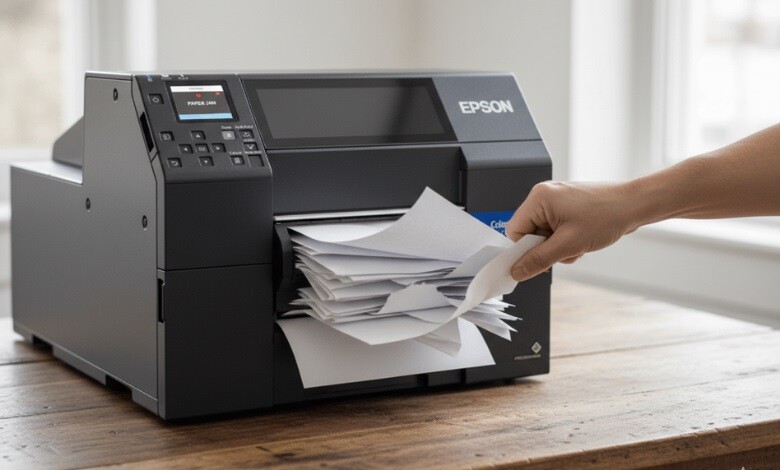
If you’re staring at a blinking jam light, here’s how to fix a printer jam fast. Power the printer off, open every access door, and pull the stuck sheet out slowly in the direction the paper normally travels, using both hands and no tools. Then look for torn scraps, close all the doors, and power the printer back on so the sensors reset. That single sequence clears most jams in under five minutes.
Below, we walk you through what causes jams, how to remove stuck paper safely, and the habits that stop it from coming back. Let’s get started.
-
 VIPColor VP700 Color Label Printer$7,500.00
FREE SHIPPING over $199*
Orders before 12PM EST usually Ship Same Business Day -
 Epson ColorWorks CW-C6000P Matte Color Inkjet Label Printer with Auto Peel and Present with Free $300 of 4×6 Matte White Blank Paper Labels SKU: C31CH76A9961$3,398.00
FREE SHIPPING over $199*
Orders before 12PM EST usually Ship Same Business Day -
 Afinia F502 Fanfold Color Label Printer (Pigment Version) with $120 Free Blank Labels SKU: 35424$2,495.00
FREE SHIPPING over $199*
Orders before 12PM EST usually Ship Same Business Day
Why Is My Printer Jamming in the First Place?
 The answer is almost never the printer alone. It’s usually a mismatch between the machine and what you’re feeding it.
Here are the causes we see most often:
- Moisture and curl. Paper and label stock absorb humidity. Damp sheets stick together and warp, which makes them feed two at a time or enter the rollers crooked. Storage above roughly 60% relative humidity is where we start seeing curl complaints.
- Static and dry air. Below about 40% relative humidity, sheets cling to each other and double-feed.
- Overloaded trays. Filling past the max fill line puts too much pressure on the pickup roller.
- Loose or tight guide rails. If the guides don’t rest snugly against the stack, the sheets skew. If they squeeze too hard, sheets pinch and stall.
- Mixed stock. Combining leftover sheets of different weights or brands in one tray is one of the fastest ways to cause a jam.
- Worn feed rollers. Grip fades as the rubber ages and glazes over. Once traction drops, sheets slip and land off-center.
- Dust and debris. Paper dust builds up on rollers and sensors and slowly changes how the machine reads paper position.
- Wrong media setting. Telling the printer it’s running 20 lb bond when you’ve loaded heavy card stock changes how it pulls the sheet and how much heat it applies.
Clearing the sheet fixes today’s jam. Fixing the cause is what keeps you printing tomorrow.
Where the Jam Happens Tells You What’s Wrong
| Where the jam happens | Most likely cause | First thing to try |
| Paper tray | Overfilled tray or loose guide rails | Reload from a squared stack, set the guides snug |
| Transport path | Worn feed rollers or paper dust | Clean the rollers, check for glazing |
| Duplex unit | Curled or damp stock | Switch to a fresh ream, print single-sided to confirm |
| Fuser or output area | Media weight set wrong in the driver | Match the driver setting to what’s physically loaded |
| Error with an empty path | Dust or debris on a sensor flag | Wipe the sensors, power down for 60 seconds |
If jams cluster at one location, treat that section as your prime suspect for wear. Note it before you call support, because it shortens the diagnosis considerably.
How to Get Jammed Paper Out of the Printer Safely
This is the part people rush, and rushing is what breaks printers. Take the steps below in sequence.
- Check the error message before anything else. Modern printers tell you where the jam is: the tray, the transport path, the duplex unit, or the output area. Start there instead of guessing.
- Power the printer down. Turn it off and, if you can reach the cord easily, unplug it. This keeps rollers from spinning while your hands are inside.
- Let a laser printer cool. Give the fuser two to three minutes before you reach into the rear of the path. It runs hot enough to burn, and it stays hot after shutdown. Inkjet and label printers don’t need this wait.
- Open every access door. Front cover, rear cover, tray, and duplex unit. Opening a door releases roller pressure, which makes the sheet far easier to pull.
- Pull in the direction of travel. Always draw the paper out the way it was already heading. Pulling backward drags it against the roller grain and increases the chance it tears.
- Use two hands and steady pressure. Grip the sheet at both corners and pull slowly and evenly. One-handed yanking is what tears paper in half and leaves fragments behind.
- Hunt for the scraps. People skip this constantly. Shine a flashlight into the path and look for small torn pieces. A fingernail-sized fragment sitting on a sensor will keep triggering the error.
- Never use scissors or a screwdriver. Sharp tools can score the fuser film, drum, or printhead, turning a five-minute fix into a repair bill.
- Close everything and power back on. Closing the doors and restarting is what tells the printer to re-check the path and clear the fault.
Follow that order, and clearing a stuck sheet becomes routine instead of stressful. Most machines have a model-specific jam map in their documentation, and it’s worth keeping that within reach. If you run one of the label printers we carry, our Manuals & Downloads and Technical Videos pages are the fastest place to find the right procedure for your model.
Label Printer Jams Work a Little Differently?
If you run a color label printer, jams behave differently than they do on an office copier. You’re feeding die-cut stock on a liner, and the machine tracks gaps, black marks, or notches to find where each label starts. Nothing about that resembles pulling a cut sheet from a tray.
That means most label jams come down to:
- Sensor calibration. If the gap sensor isn’t calibrated for your stock, the printer misreads the label position and stalls.
- Roll tension. A roll that’s too loose telescopes. A roll that’s too tight drags.
- Adhesive buildup. Exposed edges leave residue on the rollers, which grabs the next label.
- Curl memory. Stock stored near the core keeps its curve and enters the path at an angle.
- Wrong media type selected. Continuous, gap, and black-mark settings aren’t interchangeable.
What we see on the bench: On the Epson ColorWorks C-series, the most common “jam” call we take isn’t a jam at all. It’s gap-sensor calibration drift after a customer switches liner stock, usually to a different supplier’s die-cut roll. Running the media calibration routine resolves it without a service visit in most cases.
Clean the path with 70% isopropyl alcohol on a lint-free swab, recalibrate to your media, and confirm the driver settings match the roll you loaded. Because these machines pair specific media with specific supplies, using media and ink matched to your model reduces feed faults and print faults at the same time!
-
 QuickLabel QL-435 Compact A3 Digital Inkjet Label Press$47,295.00
FREE SHIPPING over $199*
Orders before 12PM EST usually Ship Same Business Day - VIPColor VP750 Color Label Printer$8,000.00
FREE SHIPPING over $199*
Orders before 12PM EST usually Ship Same Business Day - Afinia L901 Industrial Inline Color Label Printer with $525 Free Blank Labels SKU: 29698 GTIN: 678621130064$13,995.00
FREE SHIPPING over $199*
Orders before 12PM EST usually Ship Same Business Day
What to Do When Your Printer Says “Paper Jam” but There Isn’t One
A phantom jam happens when the printer reports a fault, but the path is empty. It’s nearly always a sensor issue rather than a paper issue.
Try this:
- Look again with a flashlight, focusing on the sensor flags and the corners of the transport path.
- Wipe the sensors and rollers gently with a dry, lint-free cloth.
- Check for a staple, label backing, or shipping tape stuck to a roller.
- Open and close each door firmly so the interlock switches register.
- Power the unit down for 60 seconds, then restart it so the sensors re-initialize.
- Confirm the firmware is current, since some false media jam errors get corrected in updates.
If the message survives all of that, the sensor or actuator may be failing. That’s a service issue rather than a cleaning one.
Why Your Printer Keeps Jamming Even After You Clear It
When a printer jams several times a week, you’re looking at a pattern instead of a streak of bad luck. Look at three things.
The stock. Store paper and labels flat, in their sealed wrappers, away from vents and exterior walls. Load from a fresh, squared stack rather than a partly used one that’s been sitting open on a shelf.
The rollers. Feed and separation rollers are wear items. If they look glazed or feel slick instead of grippy, they’re due for cleaning or replacement. On high-volume label runs, we’ve seen separation rollers glaze in well under a year, which is far sooner than most offices expect.
The path. When every jam lands in the same spot, a worn component in that section is driving it. Note the location before calling support.
For a longer maintenance routine, our guide on printer maintenance walks through what to check weekly versus monthly.
How to Prevent Printer Jams Going Forward
Prevention costs less than downtime. Work these habits into your routine:
- Riffle the stack before loading so the sheets release from one another.
- Square the stack on a flat surface, then set the guides snug without squeezing.
- Never fill above the maximum fill line.
- Keep one paper type per tray.
- Store stock sealed and flat, and let a cold roll sit indoors before loading it.
- Hold the room where you store media between 40% and 60% relative humidity.
- Wipe rollers and clear paper dust on a regular schedule.
- Match the media setting in the driver to what’s physically loaded.
- Replace worn rollers before they fail rather than after.
When to Stop and Call for Support
Call in help when you see any of these:
- The same jam location repeats after cleaning and reloading.
- You hear grinding or clicking during the feed cycle.
- Paper comes out creased, torn, or with toner or ink smearing.
- A fragment is stuck somewhere you can’t reach without removing panels.
- The jam message stays on with a genuinely empty path.
Stripping a printer down without the service manual usually runs higher than the service call itself. Our technical support team can tell you in a few minutes whether it’s a roller kit or something deeper.
Keep Your Printing Line Moving
Once you know what causes printer jams, most of them trace back to media, loading, or maintenance, and all three are within your control.
When the fix points to hardware instead, we can help you compare current label printers, source matched supplies, or review whether your device still fits your volume. As an authorized partner for Afinia, Epson, TrojanLabel, QuickLabel, Primera, VIPCOLOR and NeuraLabel, TCS Digital Solutions can point you to the option that fits your application.
Want help with recurring printer jams in your workplace? Contact our expert support team at orders@tcsdigitalsolutions.com or call +1 (762) 208-6985. You can also browse our blog for more on media, ink, and print quality, including our breakdown of pigment ink versus dye ink.
Frequently Asked Questions
Can a Paper Jam Damage My Printer?
No, not if you clear it correctly. A single sheet pulled out slowly in the direction of travel almost never leaves damage. The harm comes from yanking the sheet backward or digging with scissors or a screwdriver, which can score the fuser film, drum, or printhead.
Why Does My Printer Keep Jamming With Brand-New Paper?
Because the new paper isn’t necessarily dry or flat, a sealed ream stored in a humid room or near an air vent still absorbs moisture and curls, which causes double-feeds and crooked entry. Check that the sheet weight falls inside the range your tray supports, and load from a freshly opened, squared stack.
What Paper Weight Jams the Least?
20 lb bond (75 gsm) jams the least for everyday single-sided printing, and 24 lb (90 gsm) feeds more reliably for two-sided jobs. Confirm the supported weight range on your printer’s specification sheet before loading anything heavier.
How Do I Get Torn Paper Out of a Printer?
Pull the visible portion out in the direction of travel first, then find the missing piece with a flashlight before closing anything. A fragment the size of a fingernail sitting on a sensor will trigger the same error on the next job. If the scrap is behind a panel you can’t reach by hand, stop and call support.
Why Does My Printer Say “Paper Jam” When There Is No Paper?
The sensor, not the paper, is the problem. Dust on a sensor flag, a staple stuck to a roller, or a door that didn’t latch will all report a jam on an empty path. Wipe the sensors with a dry, lint-free cloth, open and close each door firmly, then power the unit down for 60 seconds so the sensors re-initialize.
Do Label Printers Jam More Than Paper Printers?
No, but they jam for different reasons. Label printers track gaps, black marks, or notches to find where each label starts, so most label jams come down to sensor calibration, roll tension, or adhesive buildup rather than sheet quality.
How Often Should I Clean the Paper Path?
Once a month for a busy office device. Move to every two weeks in dusty environments, or on label printers running high volumes, where adhesive residue builds on the rollers much faster.
Should I Fix Recurring Jams Myself?
Partly. Cleaning the path, reloading the tray, and recalibrating media are all safe to do yourself. Roller replacement, sensor faults, and fragments stuck behind panels belong with a technician, since disassembly without the documented procedure often turns a minor fault into an expensive one.

