

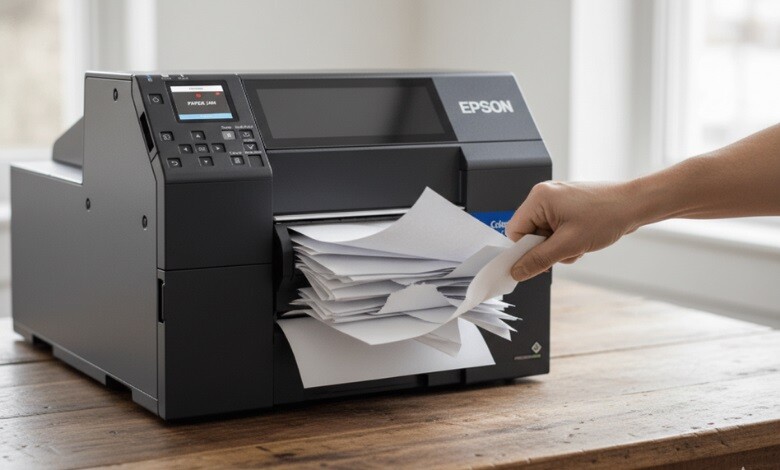
It happens to everyone: you’re about to print an important document when you encounter a printer jam. Whether you’re in the middle of a deadline or simply trying to get a simple task done, a paper jam can be incredibly frustrating. But don’t worry; in this article, we’ll guide you step-by-step on how to fix a printer jam quickly and efficiently. Say goodbye to that annoying pause and hello to smooth printing!
-
 VIPColor VP700 Color Label Printer$7,500.00
FREE SHIPPING over $199*
Orders before 12PM EST usually Ship Same Business Day -
 Epson ColorWorks CW-C6000P Matte Color Inkjet Label Printer with Auto Peel and Present SKU: C31CH76A9961$3,898.00
FREE SHIPPING over $199*
Orders before 12PM EST usually Ship Same Business Day -
 Afinia F502 Fanfold Color Label Printer (Pigment Version) SKU: 35424$2,645.00
FREE SHIPPING over $199*
Orders before 12PM EST usually Ship Same Business Day
My Printer Keeps Jamming – What to Do?
It’s common for printers to get jammed, especially when you’re printing a lot of pages in one go. But before you panic, let’s break down some of the main reasons behind paper jams and how to resolve them.
1. Check Paper Quality
If your printer keeps jamming, check the quality of the paper you’re using. If you’re using crumpled, torn, or damp paper, it can get stuck in the printer rollers. So, ensure you’re using high-quality paper that is properly stored.
2. Look for Obstructions
Sometimes, a foreign object (like a paperclip or a stray bit of paper) can cause your printer to jam. Examine the printer closely to ensure there are no obstructions. Clear them away before attempting to print again.
3. Ensure the Printer Rollers Are Clean
Dirty or worn-out rollers are another common cause of paper jams. A buildup of dust and debris can prevent paper from flowing through the rollers and can cause it to jam. You can prevent this by cleaning the rollers with a lint‑free cloth regularly.
4. Check the Paper Tray
To avoid paper jams, it is crucial to load the paper into the correct tray. If the paper is misaligned, the printer may jam when pulling it through. Keep the paper stack straight and ensure it’s not overfilled.
If you address these potential issues, your printer will be less likely to jam again. If the problem persists, it’s time to take a deeper dive into fixing the jam itself.
How to Remove a Paper Jam
Now that you know what might be causing your printer to jam, let’s go through the exact steps you need to take to remove that pesky jam. If your printer isn’t working, follow these steps to get it back in working order:
1. Open the Printer Cover
If there’s a paper jam, the first step is to open the printer cover. Most printers have a clear access panel that you can lift to expose the paper path. If you are working on your printer, make sure it is switched off to avoid accidents.
2. Take Out the Jammed Paper
Once you’ve opened the cover, gently pull out the jammed paper. Make sure the paper is not torn – if it is, make sure as many pieces as you can are removed from the printer. Check the area around the rollers and inside the paper path to ensure there’s no remaining debris.
3. Check the Output
After removing the jammed paper, check the output tray to make sure the paper isn’t caught there as well. Sometimes, paper can get stuck in the tray when the printer is trying to print the next page.
4. Run a Printer Test
Once the jam has been cleared, it’s a good idea to run a printer test. This ensures everything is back in working order and helps confirm that no other issues are preventing the printer from functioning. Print a test page to make sure the paper feeds through smoothly without any problems.
How to Resolve a False Paper Jam
False paper jams occur when the printer thinks there’s a jam, but in reality, there isn’t any paper stuck inside. These types of jams can be frustrating because you feel like you’ve fixed the problem, only for the printer to give you the same error message again.
1. Turn the Printer Off and On
The first step is simple: turn the printer off and then back on again. When you do this, you may be able to reset the printer’s sensors and eliminate any false jam errors. It may be a good idea to wait a few minutes before printing again to see if the problem persists.
2. Check the Paper Feed Mechanism
Another common reason for false paper jams is an issue with the paper feed mechanism. If the rollers aren’t properly engaging with the paper, the printer might think it’s jammed. Make sure the rollers are not damaged or worn, and replace them if needed.
3. Look for Sensors Blocked by Dust or Debris
Some printers have sensors that detect when paper is stuck. If these sensors are blocked by dust or paper debris, the printer may mistakenly think there’s a jam. Take a cotton swab or a soft brush and gently clean around the sensors to remove any obstructions.
4. Update Printer Firmware
Occasionally, a printer’s firmware might be the cause of the false jam error. Printer manufacturers release firmware updates to fix bugs and improve performance. Check the manufacturer’s website to see if there’s a new update available for your printer and follow the instructions to install it.
Where Can I Get a Label Printer?
If you’re tired of the constant paper jams and need a reliable solution for printing labels, look no further than TCS Digital Solutions. We specialize in high-quality label printers that are designed to minimize issues like paper jams and ensure smooth operation for all your labeling needs. Don’t let paper jams slow you down – invest in a quality label printer from TCS Digital Solutions today!
-
 QuickLabel QL-435 Compact A3 Digital Inkjet Label Press$47,295.00
FREE SHIPPING over $199*
Orders before 12PM EST usually Ship Same Business Day - VIPColor VP750 Color Label Printer$8,000.00
FREE SHIPPING over $199*
Orders before 12PM EST usually Ship Same Business Day - Afinia L901 Industrial Inline Color Label Printer SKU: 29698 GTIN: 678621130064$14,250.00
FREE SHIPPING over $199*
Orders before 12PM EST usually Ship Same Business Day
Final Takeaway
There is no need to worry about your printer jamming because it won’t be a hassle. Following the right steps will help you quickly resolve the issue and continue printing your documents. By understanding what causes printer jams and how to resolve them, you’ll be able to keep your printer running smoothly. Whether it’s a simple paper jam or a false error, the solutions above will help guide you through fixing your printer with ease.
Have questions related to label printers and inks? Contact our support team via email at orders@tcsdigitalsolutions.com or call +1 (762) 208-6985 to get clarification for all your questions. The TCS Digital Solutions Expert Support Team will be happy to assist you. To learn more about label printers, visit our blog section and get answers to all your questions.

