

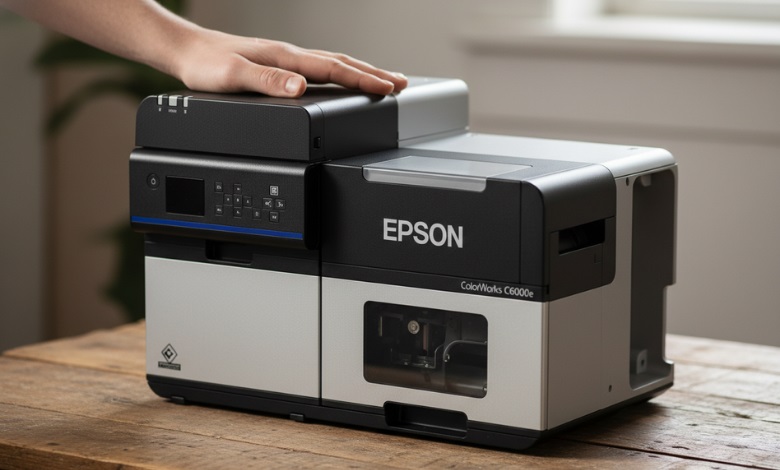
Have you ever sat down to print an important document or photo, only to be greeted by a strange pinkish hue in the output? Do you wonder, Why is my printer printing pink? You are not alone! This color issue can be frustrating, especially when you expect clear, vibrant prints. While it might seem puzzling, we’ll break down the common causes and how you can resolve this printer color conundrum.
In this article, we’ll explore why your printer might be printing pink instead of the intended color and offer practical steps to get things back on track. If you’re looking to troubleshoot printer color issues or simply want to know why the problem is happening, you’ve come to the right place.
-
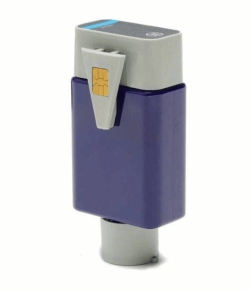 Primera LX3000 Pigment Ink Tank, Cyan SKU: 053008$66.95
FREE SHIPPING over $199*
Orders before 12PM EST usually Ship Same Business Day -
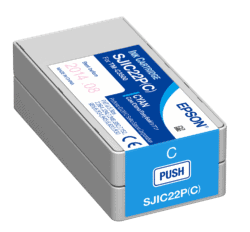 Epson ColorWorks C3500 Cyan Ink Cartridge SJIC22(C) for Epson C3500 SKU: C33S020581 GTIN: 4988617161696$29.00
FREE SHIPPING over $199*
Orders before 12PM EST usually Ship Same Business Day -
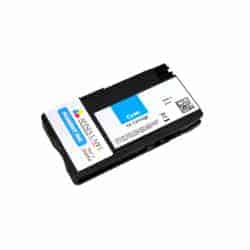 Afinia L501 / Afinia L502 / Afinia F502 Cyan Pigment Ink Cartridge SKU: 30664 GTIN: 678621140391$32.00
FREE SHIPPING over $199*
Orders before 12PM EST usually Ship Same Business Day
Why is Your Printer Printing Pink?
Let’s get to the heart of the matter: Why is your printer printing pink? If you’ve noticed your prints coming out in odd colors, you might be wondering if something is wrong with your printer. Here’s the thing: this is typically caused by one of several common issues related to your printer’s ink cartridges or settings.
Ink Cartridge Problem
One of the most common reasons for a pink tint in your prints is low or dried-up ink in your color cartridges. It is common for printers to use CMYK ink, which stands for cyan, magenta, yellow, and black colors. When one of the cartridges, especially the cyan or magenta, is running low or is clogged, it may result in an incorrect color mix, giving you that pesky pink hue.
Incorrect Printer Settings
Sometimes, the issue lies within your printer settings. If the color profile is incorrectly set or the software is misconfigured, you could end up with color distortion, including prints that are more pink than intended. This is usually easy to fix by checking your printer’s settings or updating the driver software.
Color Calibration
Your printer may also be printing pink due to poor color calibration. The color settings on your printer can be inaccurate if they are not calibrated correctly. While this doesn’t happen all the time, it’s something worth checking if you notice that your prints are consistently coming out with an odd tint.
Clogged Printer Nozzles
A common cause of strange colors is clogged printer nozzles. If your printer hasn’t been used for a while or if one of the ink cartridges has dried up, the nozzles that release ink can become blocked. When this happens, the ink can’t flow properly, resulting in color misprints like pink, even though it’s not supposed to be in the mix.
So, to sum it up, your printer could be printing pink due to issues with the ink cartridges, printer settings, color calibration, or clogged nozzles. Fortunately, fixing these problems is usually within your control.
How to Resolve Printer Color Issues
If your printer has decided to give you a bit of a pink surprise, don’t worry. Try these simple fixes to restore your printer’s proper functioning.
1. Check the Ink Cartridges
You should make sure there is enough ink in your printer. You can do this through your printer’s software or by looking at the display on the printer itself. Low or empty ink levels mean it’s time to change the cartridges. Maintaining optimal performance requires installing the cartridges correctly and seating them securely.
2. Run a Cleaning Cycle
There are printers that have automatic cleaning cycles that can be used to clear clogged nozzles. This process will clean the printhead and allow the ink to flow properly. You can find the option to run a cleaning cycle in your printer’s settings menu. In the absence of this feature, you might be able to wipe down the printhead with a soft cloth, gently.
3. Adjust Printer Settings
It is important to check that your printer’s settings are configured correctly. Sometimes, a setting change like “grayscale” or “black and white” can be accidentally selected, causing your printer to use only one ink cartridge. Resetting the settings or selecting the appropriate color mode should get your printer back to normal.
4. Calibrate the Printer
If your printer’s colors have been off for a while, it might be time to recalibrate it. It is common for printers to have built-in tools for color calibration. The color alignment should be restored by following the instructions in the manual or the settings for your printer.
5. Replace the Printer Cartridge
If you’ve tried all of the above and still find that your printer is printing pink, it could be time to replace the cartridge. Over time, cartridges can become damaged or dry out. Possibly, you will need to replace them in order to resolve this problem.
6. Update Printer Drivers
The use of outdated printer drivers can also result in color issues. Ensure that your printer’s drivers are updated by visiting the manufacturer’s website. Download and install any updates for better color accuracy and smoother printing.
You can always rely on professional printer services if all else fails. Sometimes, printers develop deeper issues that require expert attention.
Where to Buy a Label Printer and Inks
Searching for the best label printers and inks? When it comes to TCS Digital Solutions, we have you covered! From printing barcodes to shipping labels, their premium printers deliver precision and durability. Plus, enjoy expert support and hassle-free service. Get the best for your business. Visit TCS Digital Solutions today and elevate your printing game!
-
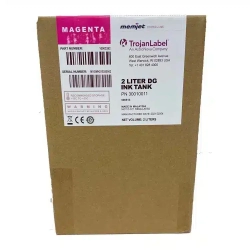 Trojan T2 / Trojan T2C / Trojan T3 STD DGN 2L Magenta Ink TrojanLabel INK-T2C-M-DGN-2L SKU: 30030002$1,495.00
FREE SHIPPING over $199*
Orders before 12PM EST usually Ship Same Business Day -
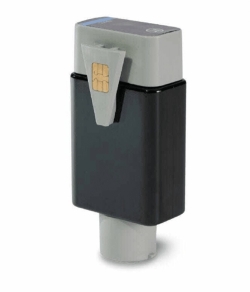 Primera LX3000 Dye Ink Tank, Cyan SKU: 053004$66.95
FREE SHIPPING over $199*
Orders before 12PM EST usually Ship Same Business Day -
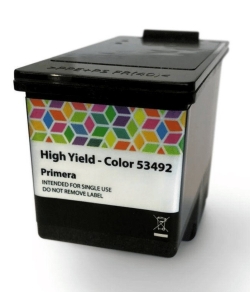 Primera LX910 Ink Cartridge, High Yield Color Dye SKU: 053492$94.95
FREE SHIPPING over $199*
Orders before 12PM EST usually Ship Same Business Day
Final Takeaway
To summarize, if your printer is printing pink, it is most likely due to one of a few common issues: low ink levels, clogged print nozzles, incorrect printer settings, or color calibration issues. Fortunately, resolving these issues is usually simple and can be accomplished with some troubleshooting.
Once you’ve followed the steps mentioned above, your printer should be back to producing crisp, vibrant prints in no time. And remember, if you need more help or have further questions about printer issues or label printers, don’t hesitate to contact our support team at TCS Digital Solutions.
Do you have questions related to label printers and inks? Contact our support team via email at orders@tcsdigitalsolutions.com or by call at +1 (762) 208-6985 to get clarification for all your questions. The TCS Digital Solutions Expert Support Team will be happy to assist you. To learn more about label printers, visit our blog section and get answers to all your questions.

