

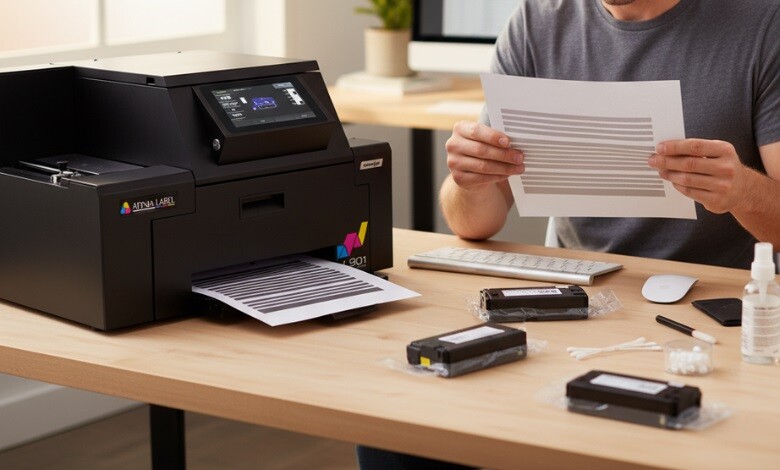
If you’ve ever been in the middle of printing an important document and noticed strange lines or streaks running across the page, you’ve probably asked yourself, Why is my printer printing lines? It’s an issue that plagues many printer owners, whether you’re using an inkjet printer, a laser printer, or even a high-end label printer. However, don’t worry; we’re here to guide you through the reasons behind this issue and provide instructions on how to resolve it.
Clean, crisp printouts are essential, especially for those who rely on their printer for work or personal tasks. In this guide, we’ll delve into the most common reasons behind lines on prints and provide you with the steps to resolve the issue. Let’s take a look!
-
 Quick Label QL-120D Inkjet Color Label Printer with 1 Year Warranty SKU: 42725600$7,995.00
FREE SHIPPING over $199*
Orders before 12PM EST usually Ship Same Business Day -
 Epson ColorWorks CW-C6000P Matte Color Inkjet Label Printer with Auto Peel and Present SKU: C31CH76A9961$3,898.00
FREE SHIPPING over $199*
Orders before 12PM EST usually Ship Same Business Day -
 Afinia F502 Fanfold Color Label Printer (Pigment Version) SKU: 35424$2,645.00
FREE SHIPPING over $199*
Orders before 12PM EST usually Ship Same Business Day
What Causes an Inkjet Printer to Print Lines?
It is well known that inkjet printers are affordable and offer excellent print quality, but they are not without their problems. The problem of lines appearing on printed documents can often be traced back to a few key causes.
- Clogged Print Heads: Due to the drying up of the ink, nozzles on the print head can become clogged. This can result in uneven ink distribution and lines across your prints.
- Low or Poor-Quality Ink: Low ink levels or the use of subpar third-party cartridges can negatively impact print quality, resulting in visible lines.
- Misaligned Print Heads: If the print head is misaligned, it can leave gaps in your printout, resulting in lines.
- Dirty or Faulty Cartridges: If your ink cartridges are old or dirty, the ink may not be distributed evenly, leading to streaks and lines.
- Paper Issues: Sometimes, using low-quality paper or the incorrect type of paper can lead to poor ink adhesion, resulting in visible lines on your printout.
How To Fix an Inkjet Printer Printing or Missing Lines
Now that we understand what’s causing the problem, let’s tackle the solution. Here’s how to fix the issue of your inkjet printer printing lines, step by step.
Step 1 – Run the Cartridge/Print Head Cleaning Process
Most modern inkjet printers feature a special automatic cleaning function that enables them to clean the print heads. This process helps clear any ink clogs from the nozzles.
To run the cleaning process:
- Access your printer’s settings menu.
- Look for a button called “Clean Printhead” or a similar option.
- Following the instructions on the screen will allow you to clean the print heads.
This process may take a few minutes, and you may need to repeat it several times for optimal results.
Step 2 – Clean the Cartridges/Nozzles
If cleaning the print head doesn’t do the trick, the next step is to clean the cartridges and nozzles. Here’s how to do it:
- Turn off the printer and carefully remove the ink cartridges.
- Ink can be removed from your contacts and nozzles by wiping them with a soft, lint-free cloth.
- You can use water or a special cleaning solution if needed.
- Once the cartridges have been cleaned, reinsert them and test your printer to ensure that it is working correctly.
Step 3 – Clean the Ink Cartridge Carriage/Print Head
If the problem persists, the issue may lie with the carriage or the print head itself. These areas can accumulate dust and debris, resulting in poor print quality.
To clean the carriage or print head:
- Ensure that the printer is off and disconnected from its power source.
- Make sure the printer’s cover is open and locate the carriage (where the print heads are installed).
- Dust and ink deposits can be removed with a dry, clean cloth.
- The printer should be reassembled, and a test print run should be run.
What causes a Laser printer to Print Lines?
Laser printers work differently from inkjets, but they can also suffer from the dreaded lines on prints. Here are some reasons why your laser printer might be printing lines:
- Dirty Drum: The drum in a laser printer is responsible for transferring toner onto paper. If the drum gets dirty or damaged, it can leave streaks or lines on your printouts.
- Toner Problems: Low toner or poor-quality toner can cause inconsistent prints, leading to lines or uneven coverage.
- Paper Issues: Just as with inkjet printers, using low-quality paper in a laser printer can cause the toner to fail to adhere properly, resulting in visible lines.
How to Fix a Laser Printer Printing Lines on the Printout
Laser printers differ from inkjet printers, but they can experience the same issue: lines on printed pages. What is causing your laser printer to print lines? The following steps will guide you through troubleshooting and resolving the issue.
Step 1 – Check for Toner Cartridge Issues
The toner cartridge is responsible for transferring ink from the printer to the paper. If the toner is applied unevenly, you may notice lines in your printouts. As a first step, check your toner cartridge. If it’s nearly empty or the toner is unevenly distributed, replacing it may fix the issue.
Step 2 – Clean the Printer’s Drum
The drum inside your laser printer can also be a culprit. If it’s dirty or damaged, it may cause lines on your prints. You can try cleaning the drum gently with a soft, lint-free cloth. Ensure you follow your printer’s manual for proper cleaning instructions to prevent damaging the drum.
Step 3 – Check for Paper Issues
Sometimes, the paper you use can cause problems. Low-quality or damp paper can cause the toner to adhere unevenly, resulting in lines and streaks on your printouts. Ensure the paper you use is the correct type and that it is stored in a cool, dry place.
Where Can I Get Laser And Inkjet Label Printers?
At TCS Digital Solutions, we offer a diverse range of high-quality inkjet and laser label printers for Afinia, Epson, Primera, QuickLabel, VIPColor, and Trojanlable brands, designed to meet the printing needs of businesses and homes alike. Whether you’re printing shipping labels, product labels, or inventory tags, we have the perfect solution to meet your needs. Our selection of label printers delivers fast, reliable, and high-quality prints every time.
Choose from our range of label printers to find the one that best fits your business or personal needs. Visit our blog section for more insights on selecting the right printer and troubleshooting any issues with your current model.
-
 TrojanLabel T2-C Tabletop Volume Press Label Printer SKU: 10000155$33,995.00
FREE SHIPPING over $199*
Orders before 12PM EST usually Ship Same Business Day - Afinia L901 Industrial Inline Color Label Printer SKU: 29698 GTIN: 678621130064$14,250.00
FREE SHIPPING over $199*
Orders before 12PM EST usually Ship Same Business Day - Epson ColorWorks C3500 Inkjet Color Label Printer SKU: C31CD54011 GTIN: 814420980046$2,419.00
FREE SHIPPING over $199*
Orders before 12PM EST usually Ship Same Business Day
Final Takeaway
If you’ve been wondering, Why is my printer printing lines?, the answer is often related to issues like clogged print heads, low ink, or dirty cartridges. The majority of these issues can be resolved with regular maintenance. If you’ve tried all the solutions and are still facing issues, consider reaching out to a professional for repairs or replacement parts.
Have more questions related to Why Is My Printer Printing Lines? Contact our support team via email at orders@tcsdigitalsolutions.comor call (678) 824-2304or +1 (762) 208-6985for clarification on any questions you may have. The TCS Digital Solutions Expert Support Team will be happy to assist you. To learn more about Label Printers, visit our blog section and get answers to all your questions.

