

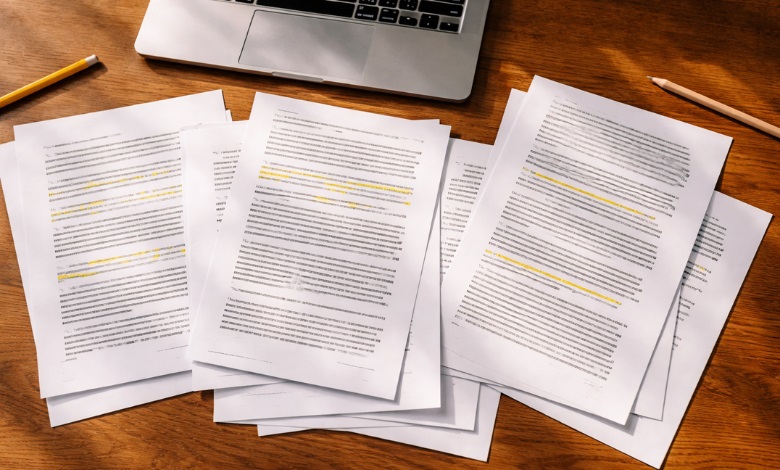
If you’ve been struggling with labels printing out of alignment, you’re definitely not the only one facing this issue. It is one of the most common frustrations for businesses and individuals who rely on label printing, from shipping and product labeling to office organization and retail packaging. Misaligned labels can not only appear unprofessional but also hinder your workflow and waste valuable label stock. The good news is that most label printing alignment issues come down to a handful of fixable causes, and this guide walks you through all of them with clear, step-by-step solutions.
-
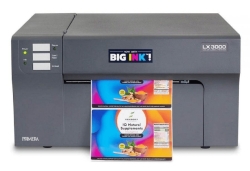 Primera LX3000 Color Label Printer with Big Ink, Dye Ink SKU: LX3000-dye$3,195.00
FREE SHIPPING over $199*
Orders before 12PM EST usually Ship Same Business Day -
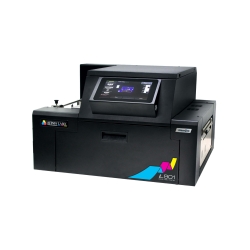 Afinia L901 Industrial Inline Color Label Printer SKU: 29698 GTIN: 678621130064$14,250.00
FREE SHIPPING over $199*
Orders before 12PM EST usually Ship Same Business Day -
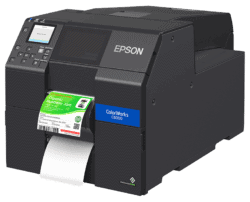 Epson ColorWorks CW-C6000P Gloss Color Inkjet Label Printer with Auto Peel and Present SKU: C31CH76A9971$2,898.00
FREE SHIPPING over $199*
Orders before 12PM EST usually Ship Same Business Day
1. Incorrect Printer Settings
The most frequent cause of misaligned labels is a printer settings error. Even a small misconfiguration can shift your print area enough to throw every label off position. Here is what to check first:
Print at 100% scale (actual Size): When you print a label sheet, your printer dialog must always be set to 100% or “Actual Size.” Anything less than 100% shrinks your design and shifts label content off its intended position. Never allow your software to automatically scale the document.
Turn off Fit to Page: If you are printing a PDF or Word document, make sure “Fit to Page,” “Shrink to Printable Area,” or “Scale to Fit” options are completely turned off. These settings compress your document to fit the printer’s margins, and the result is that your labels will print off-center.
Select the correct paper size: For US-based printing, label sheets are typically formatted for US Letter (8.5 x 11 inches). Selecting A4 by mistake is a very common reason labels drift out of position. Always confirm your paper size matches the label sheet specification before printing.
Check for outdated printer drivers: Outdated drivers can cause label printer alignment issues by misreading page dimensions. Check for the latest driver for your printer model by running the system software updater or visiting the manufacturer’s website. For a practical walkthrough of calibrating inkjet printer cartridges (Louisiana State University), correct driver installation is described as a prerequisite for accurate printer calibration.
After adjusting the settings, always perform a test print on a plain sheet of paper to ensure alignment before using actual labels. Place the test printout behind your label sheet and hold it up to a light source to check alignment before committing to your actual labels.
2. Wrong or Mismatched Label Template
Using the wrong label template is one of the most overlooked reasons why labels print out of alignment. Every label sheet from manufacturers like Avery, Dymo, or generic brands has precise measurements that must match your template exactly. Refer to the GS1 Logistic Label Guideline for industry-standard label dimension specifications used worldwide.
Match the vendor code: Check the packaging of your label sheets and locate the product code (such as Avery 5160 or Avery 8160). Download or select only the template that corresponds exactly to that code. Avery labels not printing correctly is often traced back to using a slightly different template from a compatible but different product number.
Verify template dimensions manually: In Microsoft Word, click on Layout, select Size, then use the Table Properties tool to check each cell’s dimensions against your label sheet. A label template not aligned to your actual sheet is always fixable once you verify the measurements and correct them.
Start with a fresh template: If you have been reusing an old template that was modified or resized in the past, autocorrect or accidental table adjustments could have changed its dimensions. Starting from a clean, official template download is often the fastest fix.
For a step-by-step overview of setting up label templates correctly, check out our Label Printing 101 guide, which covers best practices from design to print.
3. Printer Hardware Calibration and Sensor Alignment Are Essential to Ensuring Proper Label Alignment.
Many online guides overlook this crucial aspect of label alignment. If you are using a dedicated label printer (as opposed to a standard desktop printer), label printer alignment issues are often caused by hardware-level factors that have nothing to do with your template or software settings.
Thermal printer media sensor calibration: Thermal label printers rely on a media sensor to detect the gap or black mark between each label on a roll. When the media sensor is out of calibration, the printer struggles to recognize label boundaries, causing misalignment. This causes every label to print in a shifted or offset position. Most thermal label printers include a calibration process accessible through the control panel or utility software—refer to the printer manual for specific steps.
Label roll alignment: When loading a new roll of labels, check that the roll sits evenly on the spindle and that the label guides are set to the correct width. A roll that is slightly off-center will cause a gradual drift in alignment as the roll feeds through.
Print head position: In some thermal printers, the print head may shift, affecting alignment over time. Most manufacturers provide a calibration utility or physical adjustment screws to realign the print head. Check your printer’s documentation for guidance specific to your model.
If you are shopping for a reliable label printer that offers consistent alignment and calibration support, our range of color label printers at TCS Digital Solutions is built for professional-grade accuracy. Explore our options at tcsdigitalsolutions.com to find the right printer for your labeling needs.
4. Too Much Content or Oversized Images
This cause is specific to sheet labels used with mail merge or word processing software. If your labels contain too much text or an image that is slightly too tall, the content pushes into the next row of labels, causing every subsequent label to print lower than its intended position.
Reduce font size: Try reducing your font size by just one point, for example, from 11pt to 10pt. This is often enough to bring overflowing text back within the label boundary without noticeably affecting readability.
Resize or remove large images: If you are including a logo or graphic on your labels, make sure the image height does not exceed the label cell height. Even a one or two-pixel overflow can be enough to push your row heights out of alignment.
Use a larger label format: If your content genuinely requires more space, consider switching to a label template with a larger label size rather than trying to force too much information into a smaller label.
5. Physical Variation and Manufacturing Tolerances
Even high-quality label sheets can have very slight physical variations from their stated dimensions. This is a natural result of manufacturing tolerances and is especially noticeable when printing large batches.
Measure your labels before printing: Use a ruler or calipers to measure the actual dimensions of your label sheet, including the top margin, side margins, label height, and gap between labels. Compare these to your template’s settings. Even a 0.5mm difference can cause visible misalignment across a full sheet.
Adjust your template margins to match: In Microsoft Word, go to Layout and then Page Setup to fine-tune top and left margins. Increase the top margin if labels print too high, or decrease it if they print too low. Make small adjustments of 0.5mm or less and test print after each change.
Quick Label Alignment Troubleshooting Checklist
Use this checklist before and after every label print run to avoid common label printing alignment issues:
- Print scale is set to 100% (Actual Size) in the print dialog.
- Be sure that the “Fit to Page” and “Scale to Fit” options are disabled to avoid misalignment.
- Always verify that the paper size is set correctly to US Letter (8.5 x 11 inches) for proper label placement.
- Template product code matches your physical label sheet exactly.
- Printer driver is up-to-date.
- The thermal printer media sensor has been calibrated (if using a label roll printer)
- Ensure the label roll is positioned correctly and that the guides are adjusted to the appropriate width for consistent printing.
- A test print on plain paper has been completed before printing on label stock.
-
 Epson ColorWorks C8000 Gloss Inkjet Color Label Printer SKU: C31CL02A9991$8,630.00
FREE SHIPPING over $199*
Orders before 12PM EST usually Ship Same Business Day -
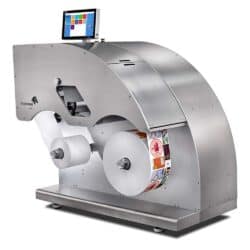 Trojan Label T2 High Volume Digital Label Press Color Label Printer SKU: 10000110-N Trojanlabel$67,195.00
FREE SHIPPING over $199*
Orders before 12PM EST usually Ship Same Business Day -
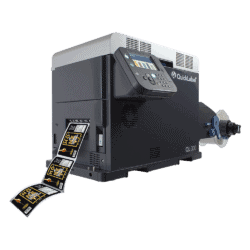 QuickLabel QL-300s (230V) 5 Color Label Printer CMYK+White SKU: 1003-0000005$12,495.00
FREE SHIPPING over $199*
Orders before 12PM EST usually Ship Same Business Day
Still Experiencing Label Alignment Problems?
Sometimes, persistent label printer alignment issues point to a printer that is past its optimal working condition, or that was never designed for high-volume, precision label printing. If you find yourself constantly battling alignment problems, it may be time to invest in a printer built specifically for professional label output.
At TCS Digital Solutions, our color label printers are engineered for consistent, accurate printing across every label format, whether you are printing product labels, shipping labels, or custom designs. Visit here to explore our full lineup and find the right fit for your business.
Have more questions about label printing? Contact our support team via email at orders@tcsdigitalsolutions.com or call +1 (762) 208-6985 for assistance. The TCS Digital Solutions Expert Support Team will be happy to help you with setup, troubleshooting, and product guidance. To learn more about printer setup, maintenance, and label printing best practices, visit our blog section and find answers to all your questions.
Frequently Asked Questions
Why Are My Labels Printing Off-Center?
Labels printing off-center are most commonly caused by an incorrect print scale setting, a mismatched label template, or a paper size mismatch. Start by confirming your print settings are at 100% scale and that you are using the exact template designed for your label sheet’s product code. If the issue persists, check whether your printer driver needs an update.
How Can I Fix Misaligned Labels in Word or Google Docs?
To fix misaligned labels in Word or Google Docs, first verify that your label template dimensions match your physical label sheet. Next, open the print dialog and disable any scaling or fit-to-page options. Set the print size to 100% and confirm the correct paper size. If all designs are shifted consistently, adjust your top and left page margins in small increments and test print on plain paper until the alignment is correct.
How Do I Calibrate a Thermal Label Printer for Better Alignment?
To calibrate a thermal label printer, locate the media calibration function in your printer’s utility software or control panel. This process instructs the printer to detect the gaps or marks between labels on a roll and recalibrate its feed to match. Most major thermal printer brands include a step-by-step calibration guide in their documentation. Run calibration any time you switch to a new label roll size or after clearing a paper jam.
What Could Be Causing My Avery Labels to Print Incorrectly?
If your Avery labels are not printing correctly, the most likely cause is a template mismatch. Avery has hundreds of product codes, and even a slight difference between two similar codes can result in misaligned printing. Check the code printed on your Avery label packaging and download the corresponding template directly from Avery’s official website or from your label printing software. Make sure the print scale is set to 100% and the paper size is correctly selected as US Letter to avoid alignment issues.

