

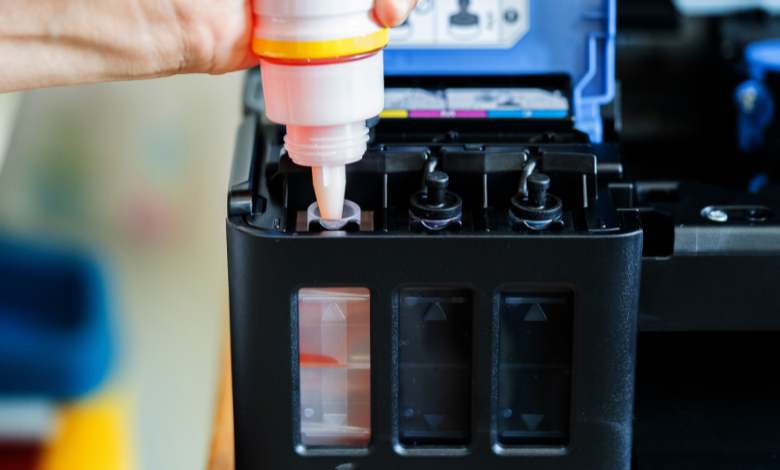
If you’re reading this, you’re likely dealing with an office printer that’s run out of ink, and now you’re asking yourself, How to change ink cartridges in an office printer? Well, don’t fret, this article will guide you through the process step by step, and we’ll even share some tips and tricks for troubleshooting common issues you might encounter along the way.
Whether you’re using a laser printer, inkjet printer, or another type of printer, changing the ink cartridge doesn’t have to be a hassle. We’ll make sure to keep things simple and straight to the point, helping you get back to printing in no time. So, let’s dive in!
-
 Primera LX3000 Color Label Printer with Big Ink, Dye Ink SKU: LX3000-dye$3,195.00
FREE SHIPPING over $199*
Orders before 12PM EST usually Ship Same Business Day -
 Afinia F502 Fanfold Color Label Printer (Pigment Version) SKU: 35424$2,645.00
FREE SHIPPING over $199*
Orders before 12PM EST usually Ship Same Business Day -
 Epson ColorWorks C7500 Gloss Inkjet Color Label Printer SKU: C31CD84311 GTIN: 814420980107$9,349.00
FREE SHIPPING over $199*
Orders before 12PM EST usually Ship Same Business Day
Step 1: Find the Printer Model and Cartridge that Matches
Before jumping into the actual replacement process, the first step in how to change ink cartridges is to identify your printer model and ensure you have the correct ink cartridge. You might think this is a small detail, but it’s crucial to get this step right; using the wrong cartridge can cause more problems than it solves.
Start by checking the printer’s model number, usually found on the front or the back of the printer. This will help you find the correct ink cartridges that match your printer. If you don’t have any spare cartridges handy, this is the perfect time to order new ones.
It’s worth noting that even printers from the same manufacturer can have different cartridge types. So, even if you think you’re familiar with the printer brand, make sure to double-check. And if you’re unsure, don’t hesitate to ask your printer’s manual or the manufacturer’s website. Looking for a quick and easy way to order your ink? You can browse the ink cartridges collection of top brands at TCS Digital Solutions, where we offer a variety of cartridges that perfectly match your printer’s requirements.
Step 2: Remove the Old Cartridges from Your Printer
Now that you’ve got your correct ink cartridge, it’s time to remove the old one. The second step in how to replace ink cartridges is to open your printer and remove the empty or expired cartridge. Here’s what you’ll need to do:
- Turn your printer on, but make sure it’s connected to power and ready for operation.
- Open the ink cartridge access door. The location of this door can vary depending on the model, so consult your printer manual if you can’t find it right away.
- If your printer has a carriage that holds the cartridges, it will likely move to the center of the printer once you open the access door. This is normal and makes it easier for you to replace the cartridge.
- Gently press the release button or lever to unlock the old cartridge.
- Carefully remove the cartridge and dispose of it, recycling if possible.
Be mindful not to touch the copper-colored contacts or ink nozzles on the cartridge to avoid causing damage or ink leaks. Once the old cartridge is removed, you’re all set for the next step.
Step 3: Open the New Ink Cartridge
Once the old cartridge is out, it’s time to get your hands on the new one. But don’t rush—before you insert the new ink cartridge, you must open the packaging carefully.
Here’s how to do it:
- Remove the new cartridge from its packaging.
- Be sure to remove any protective tape or covers that are used to protect the cartridge during shipping.
- Inspect the cartridge to ensure it’s not damaged. You should see the ink nozzle covered by a protective seal; this is normal.
It’s tempting to rush, but don’t open the new cartridge until you’re ready to install it into the printer. Keeping it sealed prevents premature drying out, which can affect the quality of your print job.
Step 4: Put in the New Ink Cartridge
With the old cartridge out and the new one ready, the next step in how to replace ink cartridges is to insert the new cartridge into the printer.
- Line up the new cartridge with the cartridge slot in your printer. Ensure that the cartridge is oriented correctly. Usually, the front of the cartridge, which may have a label, should be facing outward.
- Slide the cartridge into the slot. Push it gently until you hear a click or feel resistance; this means it’s securely locked into place.
- If your printer has a locking mechanism or clamp, you may need to press it down to ensure the cartridge stays in position.
At this point, your cartridge should be properly inserted. Don’t force it, as this could lead to damage.
Step 5: Securely Close the Printer Door
After the cartridge is successfully installed, the next step in how to change printer ink is to close the printer door or access panel securely.
Closing the door ensures that the cartridge is properly seated and prevents dust or debris from entering the printer, which could interfere with printing.
Once the door is closed, your printer might perform an automatic self-check or calibration to ensure the new cartridge is working correctly. If not, you can manually check by printing a test page to verify that the new ink is functioning as expected.
Another Method of Replacing Printer Ink
If you’re using a more modern printer, some printers now offer automatic ink replacement options, where you don’t need to manually replace the ink. For example, some printers allow you to set up subscription services where ink cartridges are automatically sent to your office when your printer detects that ink is running low.
While this is a convenient alternative, it may not be ideal for everyone. If you prefer hands-on control and don’t want to rely on automated systems, traditional ink cartridge replacement remains a reliable choice.
-
 QuickLabel QL-425 Compact A4 Digital Inkjet Label Press$31,995.00
FREE SHIPPING over $199*
Orders before 12PM EST usually Ship Same Business Day -
 Primera LX500 Color Label Printer SKU: LX500c$1,549.00
FREE SHIPPING over $199*
Orders before 12PM EST usually Ship Same Business Day -
 Epson ColorWorks CW-C4000 Color Inkjet Label Printer (Matte) SKU: C31CK03A9981$2,292.00
FREE SHIPPING over $199*
Orders before 12PM EST usually Ship Same Business Day
Conclusion
Replacing ink cartridges doesn’t have to be a stressful experience. By following these steps, you can replace your ink cartridges efficiently and get back to your work without missing a beat. Remember to check your printer model, use the correct cartridges, and follow the steps carefully to avoid any mishaps.
Have More Questions Related to Ink Cartridges? Contact our support team via email at orders@tcsdigitalsolutions.com or make a call +1 (762) 208-6985 to get clarification for all your questions. The TCS Digital Solutions Expert Support Team will be happy to assist you. To learn more about Printer Ink Cartridges, visit our blog section and get answers to all your queries.
FAQs
Even though replacing ink cartridges in an office printer is fairly straightforward, sometimes things don’t go as planned. Let’s cover some common issues that people encounter.
Why Did the Ink on the New Cartridge Dry Out?
This can happen if the cartridge wasn’t stored properly before use. Ink cartridges should be used as soon as possible after unsealing them. To avoid this, always make sure the cartridge is sealed until you’re ready to install it.
Why Is My Printer Not Working After Replacing the Ink Cartridges?
This should not have happened if the cartridge had been correctly installed. Double-check the cartridge to make sure it’s firmly placed in the slot. If the printer still doesn’t work, try restarting the printer. Sometimes a simple reset can help the printer recognize the new cartridge.
Is It Possible to Add Water to Printer Ink?
No, it’s highly unwise to add water to printer ink. Adding water can ruin the ink’s chemical properties, potentially leading to clogs or other printing issues. Stick with using only the proper ink for your printer.
Is It Possible to Make a Dried-Out Ink Cartridge Work Again?
No, unfortunately, once a cartridge is dried out, there’s little you can do to revive it. If you’re facing this issue, it’s best to buy a new cartridge for optimal print quality.
Do You Recommend Using Off-Brand or Remanufactured Ink Cartridges?
Yes, you can use off-brand or remanufactured ink cartridges, but proceed with caution. Some printers work fine with remanufactured cartridges, while others may not recognize them or produce lower-quality prints. If you choose to go this route, make sure the cartridges are compatible with your printer model.
Related Articles

