

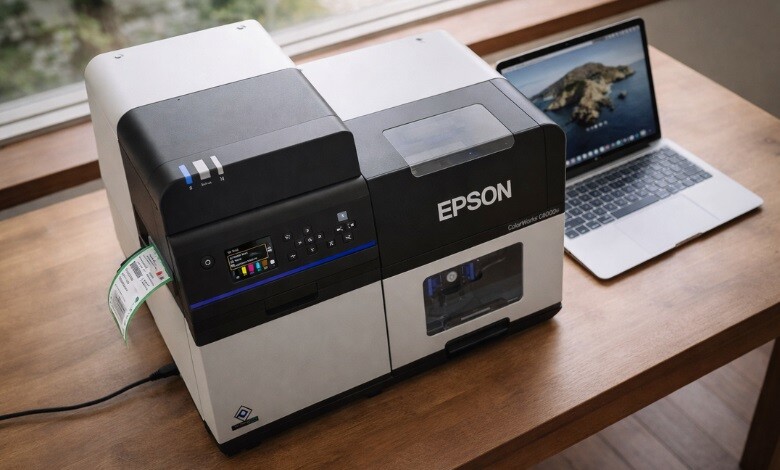
Getting your Epson printer set up right the first time saves you from frustrating connection errors, missed drivers, and wasted ink. Whether you just unboxed an EcoTank, WorkForce, or an Epson ColorWorks label printer, this guide walks you through every stage of the process, from taking the printer out of the box to printing your first page. We cover setup for Windows and Mac, wireless connection steps, the Epson Smart Panel mobile app, and Epson Connect cloud registration, along with quick fixes for the most common setup problems.
-
 Epson ColorWorks C8000 Gloss Inkjet Color Label Printer SKU: C31CL02A9991$9,630.00
FREE SHIPPING over $199*
Orders before 12PM EST usually Ship Same Business Day -
 Epson C4000 / CW-C4000 ColorWorks Inkjet Label Printer (Gloss) SKU: C31CK03A9991$2,492.00
FREE SHIPPING over $199*
Orders before 12PM EST usually Ship Same Business Day -
 Epson ColorWorks CW-C6000P Gloss Color Inkjet Label Printer with Auto Peel and Present SKU: C31CH76A9971$3,898.00
FREE SHIPPING over $199*
Orders before 12PM EST usually Ship Same Business Day
Step 1: Unbox and Prepare Your Epson Printer
Begin by carefully taking out all packing materials and protective inserts from the printer unit. Inside the box, you will typically find the printer unit, a power cord, a USB cable, ink cartridges or ink bottles (depending on the model), and a Start Here sheet. Remove every piece of protective tape, including any strips inside the ink bay or paper feed area, as leaving even one piece of tape in place can cause printing errors or hardware damage.
Place the printer on a flat, stable surface with at least four inches of clearance on all sides for ventilation and paper handling. Before plugging it in, take a moment to locate the Start Here sheet because it contains model-specific instructions that differ across Epson’s lineup. For detailed product manuals, Epson’s official support page at epson.com/Support/Printers is the most reliable source.
Step 2: Load Ink and Paper
For ink cartridge models such as the WorkForce series, gently shake each cartridge about 15 times before inserting it. This process ensures the ink is properly circulated, helping deliver smooth and even print results right from the Start. Open the cartridge bay, match each cartridge to its color-coded slot, and press down until it clicks into place. Close the bay door and select ‘Installed’ or ‘OK’ on the printer’s control panel to start the ink initialization process, which typically takes 10 to 20 minutes. To understand ink cartridge quality standards and consumer protections, the FTC provides guidance on ink cartridge seller practices that every printer owner should know.
For EcoTank models, fill the ink tanks using the bottles provided, making sure each color goes into its matching port. The printer screen will guide you through the priming cycle after you close the tank covers.
Once the initialization is complete, load plain paper into the paper tray. Slide the paper guides inward, so they sit firmly against the edges, then securely close the tray cover. The printer will confirm it has detected the paper on its display or via a status light. For tips on configuring your printer for label stock specifically, read our blog post on How to Change Printer Settings for Label Printing.
Step 3: Install the Epson Printer Driver
Your printer needs a driver to communicate with your computer. A printer driver works as the essential software that converts your print instructions into a format your printer can understand.
On Windows, go to Epson’s official support page, enter your printer model, and download the full feature driver for your version of Windows (Windows 10 or Windows 11). Launch the setup file and proceed step-by-step by following the instructions displayed on your screen. If you want to use Epson Connect services like Email Print or Remote Print, also download and install the Epson Connect Printer Setup Utility from epson.com/support/epson-connect-downloads. This utility is required to activate Epson Connect features and takes only a few minutes to install.
On Mac, visit the same support page and download the driver package for your macOS version. After installation, open a Finder window, navigate to Applications, then Epson Software, and launch the Epson Connect Printer Setup application to complete the Mac-side registration. On both platforms, you may need to restart your computer for the driver to take effect before the printer appears in your system’s device list.
Step 4: Connect Your Printer to Wi-Fi
Most Epson printers today support wireless setup directly from the printer’s control panel. From the printer display, open Settings → Wi-Fi Setup → Wi-Fi Setup Wizard, select your network name, input the password, and confirm. A steady blue or green indicator shows the connection is active.
If your router has WPS functionality, press the WPS button on both the printer and router within a short time window to connect instantly without entering credentials.
After establishing the connection, download and install the Epson Smart Panel application on your smartphone or tablet. Open the app, tap Set Up Printer, and follow the guided steps to pair your phone with the printer over the same Wi-Fi network. Epson Smart Panel lets you print documents and photos, run maintenance tasks, check ink levels, and scan, all from your mobile device. This is a step competitors’ guides consistently skip, but it is one of the most practical features for everyday users. If you are also exploring dedicated label printing, our post on Label Printing 101: Basics of Great Labels is a great next read.
Step 5: Register with Epson Connect
Epson Connect is Epson’s cloud printing platform. Once registered, it gives your printer a unique email address so you can send documents to it from any device anywhere in the world using Epson Email Print. It also enables Scan to Cloud, which lets you send scanned files directly to Google Drive, Dropbox, or email, and Remote Print, which lets you print to your home printer from a work computer.
To register, run the Epson Connect Printer Setup Utility on your computer and select Printer Registration when prompted. For new users, complete the Epson Connect account registration form and finish the setup. If you have previously created an account, sign in and attach the printer to proceed with setup. After registration, follow the on-screen link to the Activate Scan to Cloud and Remote Print page to enable those specific services.
Step 6: Run a Test Print
With the driver installed, the printer connected to Wi-Fi, and Epson Connect registered, it is time to confirm everything is working. On a Windows system, access Settings → Printers & Scanners, choose your Epson device, and print a sample page to verify functionality. On Mac, open System Settings, select Printers and Scanners, click your printer, and choose Print Test Page from the options menu. On your mobile device, open the Epson Smart Panel and print a small document or photo. A clean, correctly aligned test page confirms your setup is complete.
Troubleshooting Common Epson Printer Setup Issues
Even when you follow every step carefully, occasional issues can come up. Below are typical setup issues you might face, along with simple solutions to resolve them quickly.
Epson printer not printing: First, check that the printer is powered on and that the ink initialization or charge cycle has completed. Open your computer’s print queue (Windows: Settings > Printers and Scanners > Open print queue; Mac: System Settings > Printers and Scanners > Open print queue), clear any stuck jobs, and try sending a new document. If the printer still does not respond, uninstall and reinstall the driver.
Epson printer showing as offline: This usually means the computer and printer are not on the same network, or the printer’s IP address has changed. On Windows, right-click the printer in Printers and Scanners and select See what’s printing, then uncheck Use printer offline. On Mac, delete the printer and add it again using the + button in Printers and Scanners. On both platforms, confirm the printer’s Wi-Fi indicator is solid and not blinking before attempting to reconnect.
If driver installation does not succeed, verify that you downloaded the correct version for your OS and temporarily turn off antivirus software that may block the process. If the issue persists, use Epson’s Epson Connect Printer Setup Utility for a simplified installation path. The OSHA printing industry health and safety resource also provides a useful reference for understanding safe printer operation in workplace settings.
Ink not recognized after cartridge install: Remove the cartridge, shake it gently 10 to 15 times, and reinsert it firmly until it clicks. If the printer still does not recognize it, check that you removed the yellow tape from the cartridge contacts before inserting it.
Need Label Printing?
If your business relies on on-demand label production, you may want to explore Epson’s dedicated ColorWorks line rather than a standard office printer. TCS Digital Solutions carries a full range of Epson label printers built for high-volume, high-accuracy label jobs across retail, warehouse, food service, and manufacturing environments. Explore our Epson label printers collection to compare models, check compatibility with your label stock, and request a quote today.
- Epson ColorWorks CW-C4000 Color Inkjet Label Printer (Matte) SKU: C31CK03A9981$2,492.00
FREE SHIPPING over $199*
Orders before 12PM EST usually Ship Same Business Day -
 Epson ColorWorks CW-C6500A Gloss Color Inkjet Label Printer with Auto Cutter SKU: C31CH77A9991$3,965.00
FREE SHIPPING over $199*
Orders before 12PM EST usually Ship Same Business Day - Epson ColorWorks CW-C6000P Gloss Color Inkjet Label Printer with Auto Peel and Present SKU: C31CH76A9971$3,898.00
FREE SHIPPING over $199*
Orders before 12PM EST usually Ship Same Business Day
Final Thoughts
A successful Epson printer setup comes down to following the right sequence: prepare the hardware, load ink, install the correct driver, connect to Wi-Fi, register with Epson Connect, and verify with a test print. Properly following each step in sequence is essential, as missing even one can lead to common setup issues. Save this guide for future reference when installing a new Epson printer.
For businesses with more specialized printing needs, including barcode labels, product labels, or shipping labels ,TCS Digital Solutions provides expert guidance on Epson ColorWorks printers and compatible label media. Our team is ready to help you choose the right solution and get your printing workflow running at full capacity.
Have more questions about Epson printer setup? Contact our support team via email at orders@tcsdigitalsolutions.com or call +1 (762) 208-6985 for assistance. The TCS Digital Solutions Expert Support Team will be happy to help you. To learn more about printer setup, troubleshooting, and label printing solutions, visit our blog section and find answers to all your questions.
Frequently Asked Questions
Do I Need the Epson Connect Printer Setup Utility to Use My Printer?
No, you can handle everyday printing tasks without installing any additional tools or software beyond the basic setup. The utility is only required if you want to use Epson Connect cloud services such as Email Print, Remote Print, or Scan to Cloud. Basic printing and scanning work with just the standard driver.
Is It Possible to Complete the Epson Printer Setup Without Using a Computer?
Yes. Most modern Epson printers can connect to your Wi-Fi network directly from the printer’s control panel using the Wi-Fi Setup Wizard or WPS button method. Once connected, you can print from your phone or tablet using the Epson Smart Panel app without ever touching a computer.
How Long Does Ink Initialization Take on a New Epson Printer?
Ink initialization typically takes between 10 and 20 minutes, depending on the model. During this time, the printer charges the ink delivery system and performs an internal check. Do not turn the printer off during this process, as doing so can leave the print head partially charged and lead to print quality problems later.
What Causes an Epson Printer to Appear Offline Even When It’s Turned on, and How Can This Issue Be Resolved?
Start by verifying that both devices are connected to the same network, then disable the “Use printer offline” option within the Windows print settings. On Mac, remove the printer from the Printers and Scanners list and add it again. If the problem recurs frequently, assign your printer a fixed IP address in your router’s DHCP settings so its address does not change between reboots.

